Last updated on 2025-12-26, by
Why Does YouTube Keep Pausing? Causes and Easy Fixes
Summary:
- Your YouTube videos may keep pausing due to various reasons like a slow internet connection, browser problems, device incompatible settings, or external device audio conflicts. Here are all the possible solutions and causes of this problem. Fix today and enjoy seamless streaming.
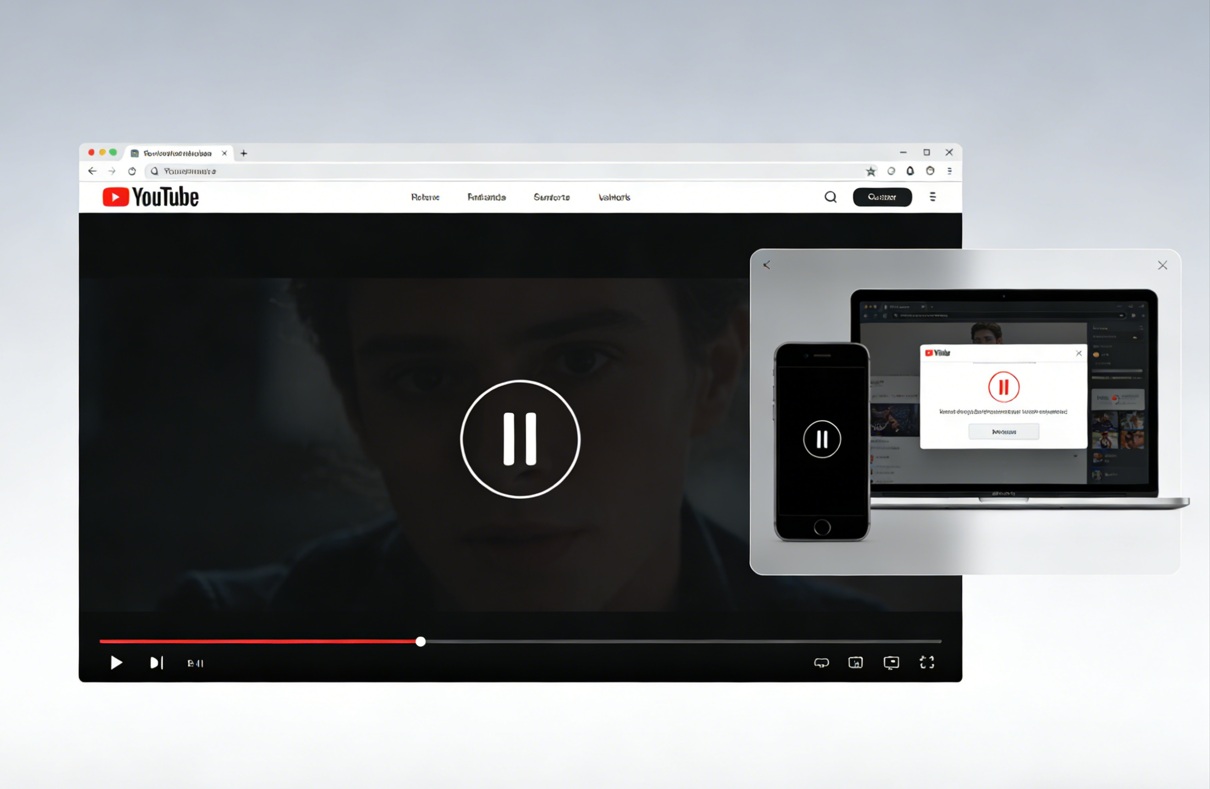
YouTube is the most popular streaming platform, and we use it almost every day. But a common problem is that you will often experience your YouTube videos pausing. In this article, we will explain why YouTube keeps pausing and the reasons behind it. Plus, we will show you some quick fixes for each cause. We will also share a bonus tip to download all your favorite YouTube videos for offline watching. Let’s get started.
Also Read:
How to download YouTube members-only videos?
Best YouTube movies downloaders
How many people can watch YouTube TV at once?
Quick AccessCLOSE
1. Network Issues
YouTube needs a stable and fast internet connection to play videos. So, if your connection is slow, you may experience your video pausing. This happens a lot with weak Wi-Fi, crowded networks during peak hours, or when multiple devices are online at once.
This problem will be more obvious if more than one device is streaming videos or downloading large files at the same time. In that case, your available bandwidth will be overloaded. As a result, YouTube drops the video quality, freezes up, or keeps buffering. Sometimes, it’s just a random network glitch or your internet provider slowing things down. All of this leads to pixelated videos and too many interruptions.
Solution:
You need to test your internet connection speed. For 1080p streaming, the speed necessary is at least 5 to 8 Mbps. A restart of your modem or router could also fix the issue. The use of a wired connection is very effective, but if it is not possible, then just get closer to your WiFi router. Still, having troubles? Lower the video quality to 720p or 480p to reduce buffering.
2. Browser-Related Issues
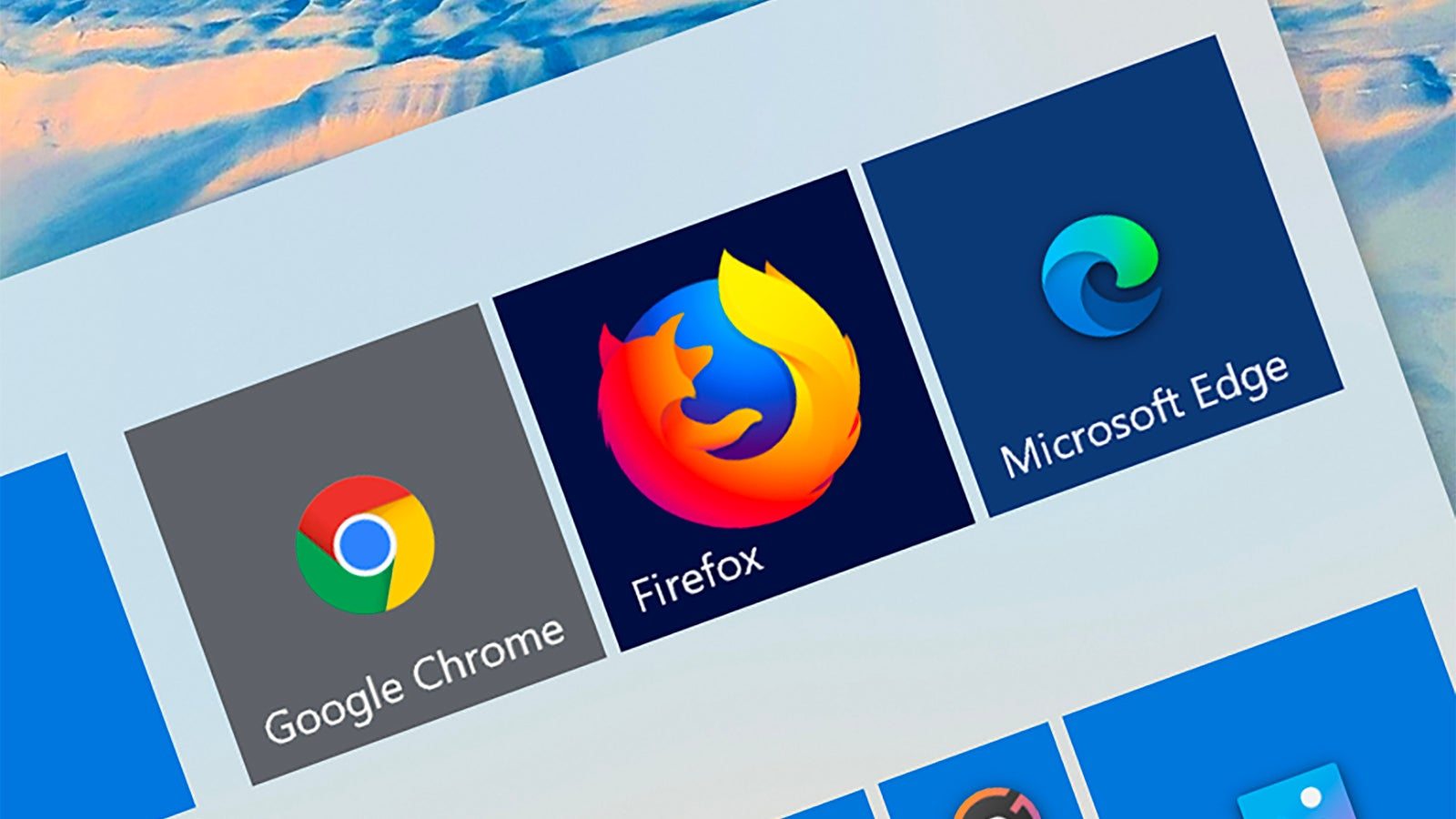
Other times, YouTube videos keep pausing because of your browser settings. Your browser’s cache files or corrupted cookies can also cause issues. There are many browsers add on, like ad blockers or privacy tools, whose settings do not align with YouTube and can cause issues in your YouTube playback. Your YouTube videos can also stop when you change tabs or when you turn power saving features. Another reason could be outdated browsers.
Solution:
You can try to clear the cache and cookies. It’s best to disable all additional extensions. Specifically, turn on ad blockers or privacy detection and blocking programs. And if you are not sure which extension is the issue, you can turn on the incognito mode. Another option is to enforce the power-saving settings or browser features. Still, no? Now go ahead and change your browser to the default settings or reinstall and upgrade.
3. Mobile App or Device Settings
Another reason could be your Mobile devices settings. Usually, mobile devices come with battery-saving and data-saving settings. The problem is that sometimes these features could be the reason for your YouTube video pausing. Especially, if you’ve got battery saver or low-power mode turned on, your phone might cut back on background activity. Ultimately, your mobile will slow down apps, and you can experience videos pausing.
Also, if you have turned on some settings to restrict background data, your videos can pause too. Another big reason could be an outdated version of the YouTube app or your device’s operating system. An old system can also contain bugs that can pause videos. Last but not least, many times, low storage or low RAM will cause buffering and freezing.
Solution:
First of all, go ahead and disable the battery saver. Also, turn off low power mode when you want to watch YouTube. And also make sure your YouTube is allowed to run in the background and use data. You can check this in your phone settings. Also, check if your app is updated, and also your phone software is updated to get rid of bugs and keep things stable. You can also uninstall the apps that you are not using and delete the files that you don’t need to increase your storage and memory. Lastly, you can try reinstalling the YouTube app to solve the problem.
4. External Audio Device Conflicts
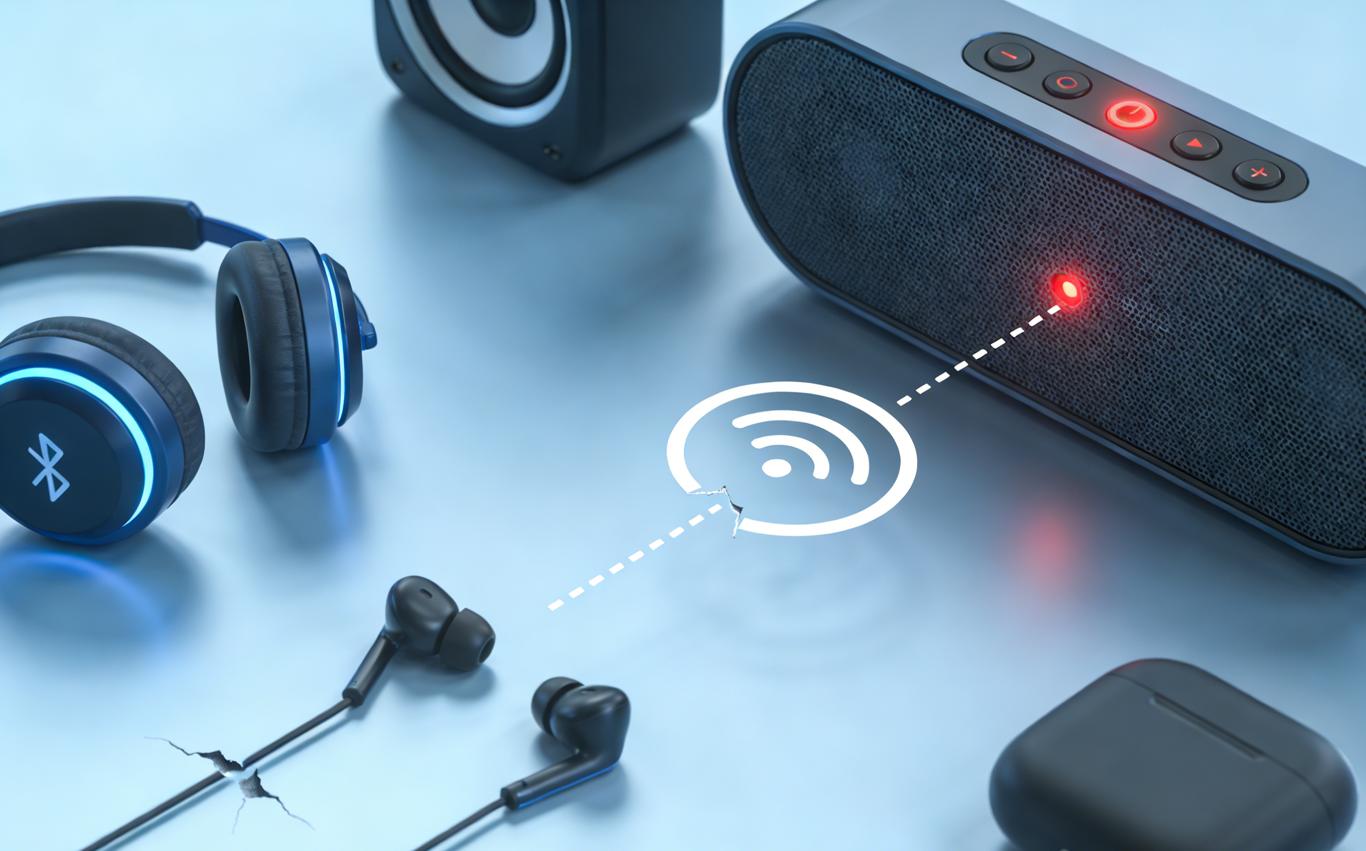
Your wired headphones, Bluetooth earbuds, and speaker could be the reason your YouTube keeps pausing. It happens all the time with wired headphones. Especially when such devices disconnect, or Bluetooth devices cut off because of low batteries, weak signals, or some compatibility problem. In computers, this can also happen because of outdated audio drivers or wrong settings in sound properties. Even on phones, one tiny wrong audio setting can remain a bugger.
Solution:
Make sure your headphones or speakers are connected properly. You can check that they’re plugged in correctly and that their batteries are charged. Also, it is good to try another pair of headphones to see if it’s an issue with your speakers or headset. Also, make sure to choose the right output audio from your settings, too. Also, switch off the “pause on unplug” option.
Bonus Tip: Best Tool for YouTube Ad-Free Streaming Without Buffering
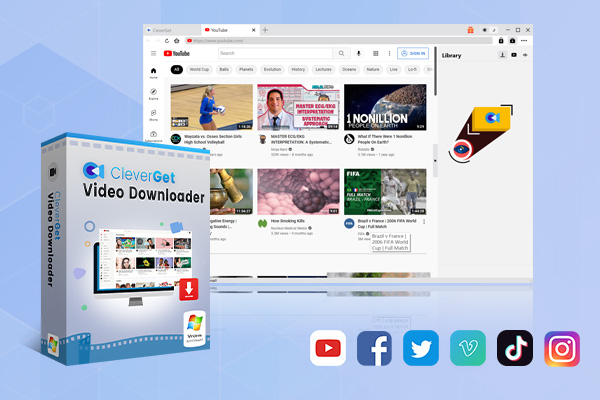
If you are tired of frequent buffering, or your YouTube video keeps pausing, or ads that keep interrupting, then we have a solution for you. The best solution is just downloading your videos for offline watching. For this, you can use CleverGet Video Downloader. It is a dedicated tool that lets you download videos for offline viewing. Once your favorite videos are downloaded, you can enjoy smooth and clear playback on compatible devices withou internet connection issues or worry about browser performance. With its batch downloading feature, you can download not just single videos but entire playlists/channels plus live streams from popular sites, such as YouTube, Twitter, Vimeo, Instagram, among others, the list goes on!
-
- Download online videos, movies, TV shows, live streams, etc. from 1000+ websites.
- Download up to 8K video and 320 kbps audio without quality loss.
- Download online video to MP4/MKV/WEBM or other available popular formats.
- Batch download online videos and remove ads for ad-free offline viewing.
Another best feature of this tool is that it automatically removes ads while downloading. In this way you can enjoy a smooth and uninterrupted playback. No matter if you want to watch your favorite music videos, movies, or live events, give CleverGet Video Downloader a try.
Conclusion
These were all the possible causes and solutions for why your YouTube video keeps pausing. Some common causes include your internet, browser, or device settings. Also, in many situations, audio devices might also be responsible for this issue. The good news is that most of these problems can be removed with a stable internet connection, updating applications/browsers, making certain changes, or checking audio settings for a short period of time. And if you want to take your YouTube watching experience to the next level, just download your favorite videos with CleverGet Video Downloader. You can download your videos in MP4 format and you can save videos and view them at any time, without any interruptions.
-
How to Record Any Streaming Video on Mac Safely?Cassie/2026-03-30
-
How to Record Discord Audio on Windows, Mac & MobileCassie/2026-02-27
-
Instagram Viewer Guide: How to View Instagram AnonymouslyCassie/2026-01-30
-
Why Does YouTube Keep Pausing? Causes and Easy FixesCassie/2025-12-26
-
How to Record Facebook Live Stream for Free on PC?Cassie/2025-11-27
-

3 Best Methods to Play Blu-ray on VLCCassie/2025-10-30
-
3 Best Tools to Convert M3U8 to MP4 Without ErrorsCassie/2025-09-26
-
5 Best Methods to Open an ISO File EasilyCassie/2025-08-28
-

Discover 8 Video Platforms Like YouTube NowCassie/2025-08-13
-
Anonymous Mode: How to View Twitter Without an Account?Cassie/2025-05-26
-

4 Ways to Download Movies from FMoviesLeia/2024-05-30
-

Top 5 Disappointments of iOS 6 Apple Users GetTony/2012-09-27
-
6 Best URL to MP4 Converters to Download URL to MP4August/2023-09-11
-
23 iPhone 5 Rumors Listed from A to WTony/2012-09-13
-

Is Watchseries Safe to Use? What Are the Best Watchseries AlternativesPatrick/2024-11-01
-
2 Methods to Convert Flash EXE to Flash SWFTony/2012-08-28
-
10 Best Project Free TV Alternatives to Watch Movies/Shows OnlineMax Will/2025-04-29
-

Top 8 Free YouTube Proxy Sites for YouTube Unblocked 2024Lumi/2024-09-24
-
Top 10 CouchTuner Alternatives for Free Movies & Shows 2026Max Will/2025-04-29
-

How to Free Download iBOMMA Telugu Movies in HDMax Will/2025-04-29