Last updated on 2025-09-26, by
3 Best Tools to Convert M3U8 to MP4 Without Errors
Summary:
- This article will explain how to convert M3U8 files to MP4 using different tools. We will show exact step-by-step instructions to use, pros, and cons for each method.
Have you seen the strange format of a video .m3u8 file when you are trying to download an online video? You’re not alone. M3U8 files are playlist files used for streaming video content over the internet. That actually points your player to multiple small video segments. It works perfectly for live streaming or on-demand playback. But the problem is that when you want to save a video offline, it’s not a simple process. For this reason, you need to convert an M3U8 to MP4.
In this article, we will show you simple steps to use CleverGet for a quick all-in-one solution, FFmpeg if you like a pro tool, and VLC if you want something free and easy-to-use. I will show you an exact step-by-step guide to save videos in MP4 format and watch them offline anytime.
OutlineCLOSE
How to Convert M3U8 to MP4 with CleverGet
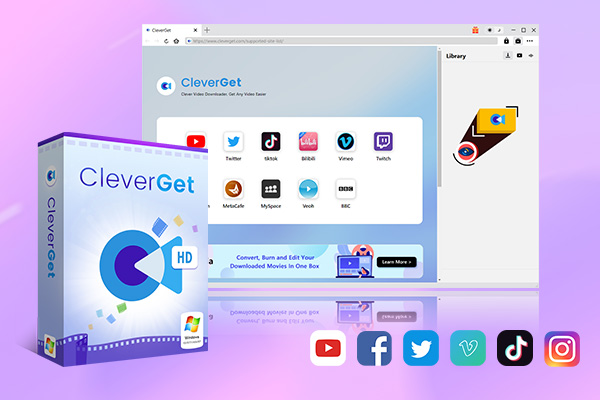
If you want a smooth, no-fuss way to convert M3U8 to MP4, CleverGet All-In-One video downloader is one of the best tools to try first. This is an all-in-one video downloader that supports over 1,000 websites. Unlike manual methods, with CleverGet, there is no need to dig up M3U8 links or no need to deal with command lines. You can easily download a single episode or batch download an entire playlist, at high speed and even record DRM-protected streams for offline playback.
-
- Download online video at up to 8K with an ad filter.
- Batch download movies, TV shows, playlists, clips, live streams, etc.
- Reserve multiple subtitle and audio track.
- Convert video to MP4, MKV, MP3 or other format files.
- Record videos in background at up to 5x speed and 4K resolution.
Here are the simple steps to convert M3U8 to MP4 with CleverGet. Download and install CleverGet All-in-One software. Open the program, and you will see a clear interface.
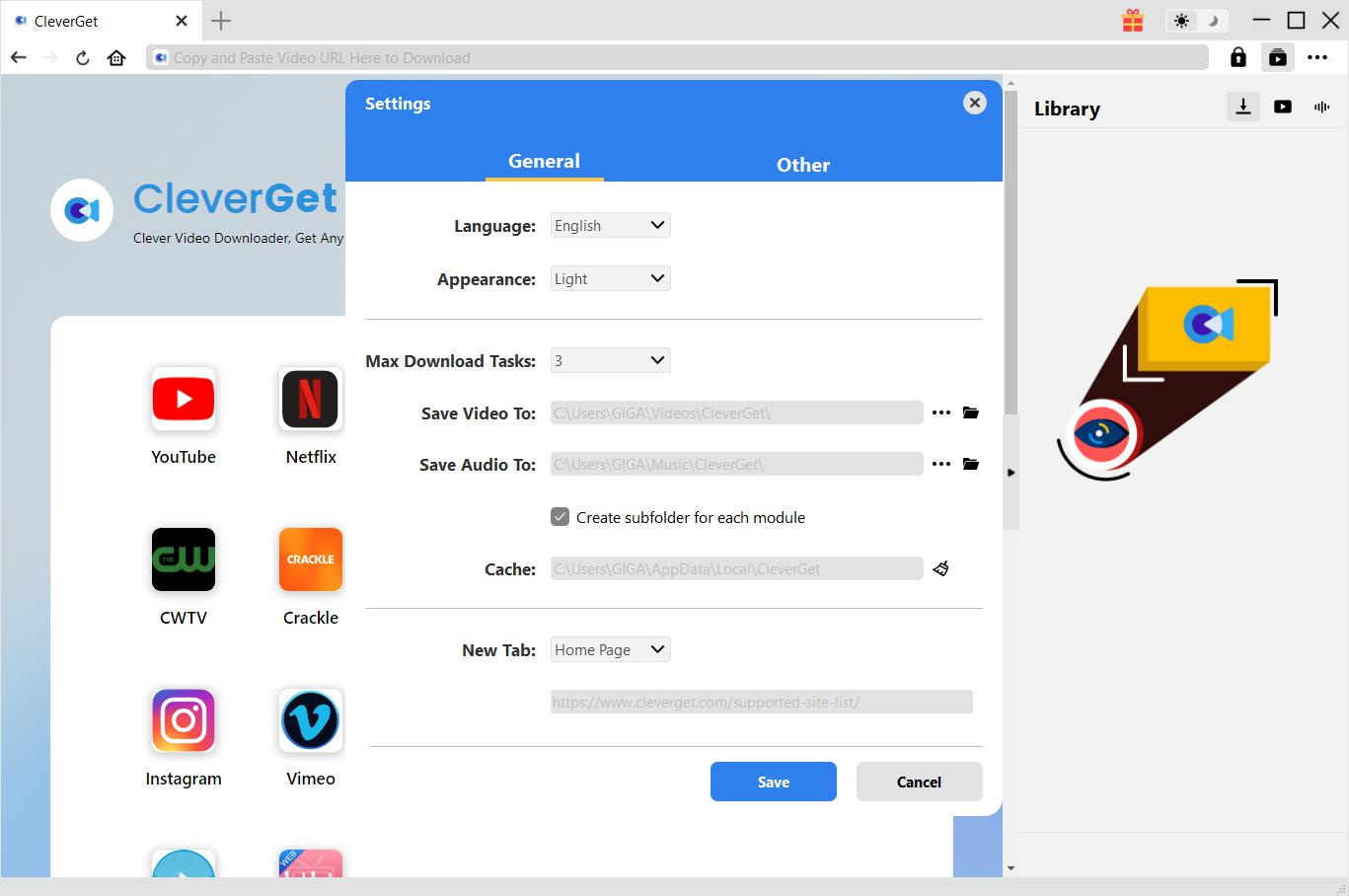
Step 1: Set Output Directory
Now, before downloading, click the three-dot menu and open “Settings. Here, under the “General” tab, choose the folder where you want to save the video and click Save at the end.
Step 2: Open the Target Video Page
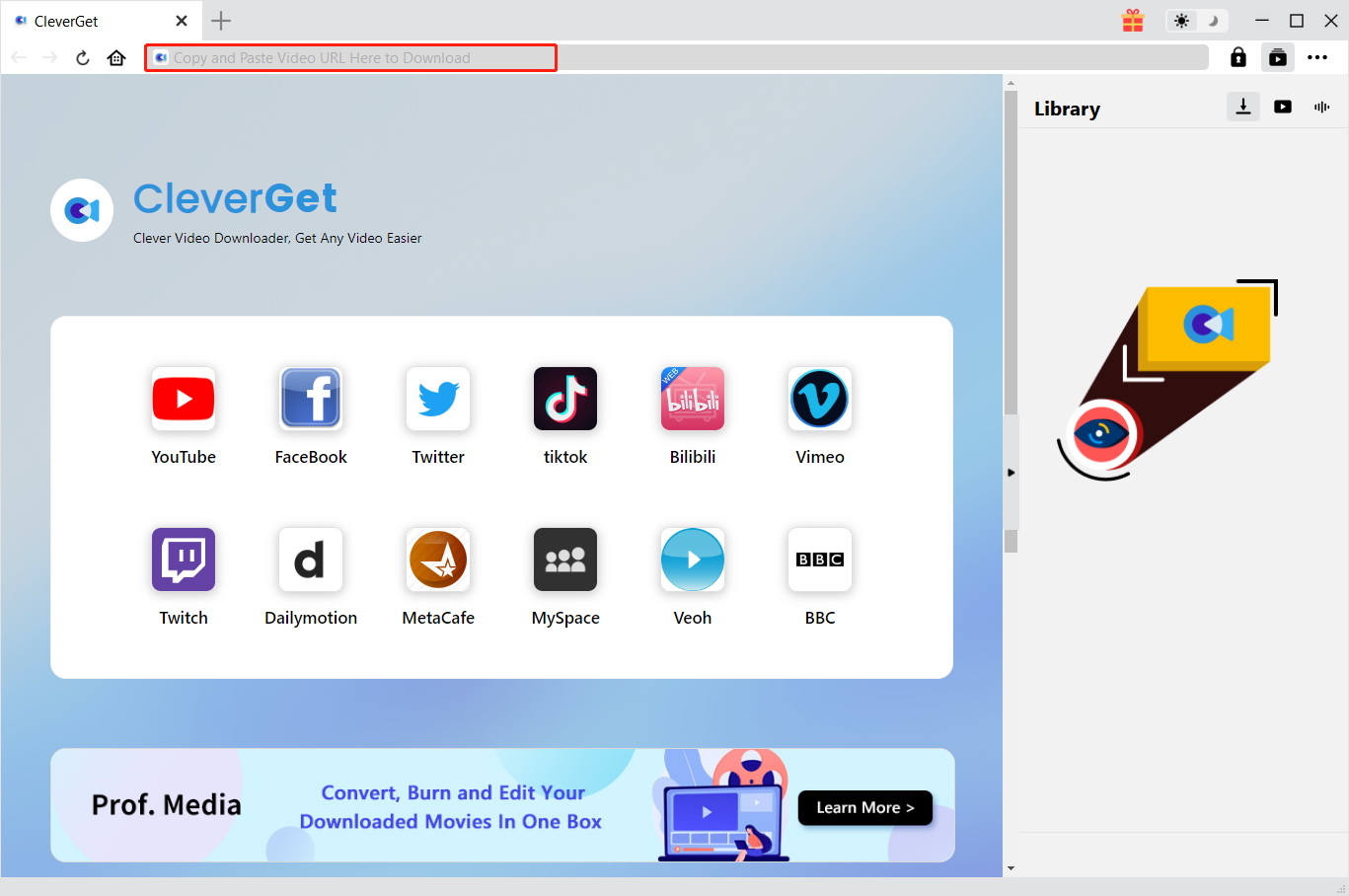
Here, you need to enter the website address of the video in the built-in browser and hit Enter. CleverGet will automatically detect the M3U8 link in the background. As you can see, there is no need for manual link copying.
Step 3: Download the Video
Once CleverGet detects the available streams. Next, you will see multiple download options, formats, resolutions, and sizes. Here, pick the one you prefer (e.g., MP4 1080p) and hit Download.
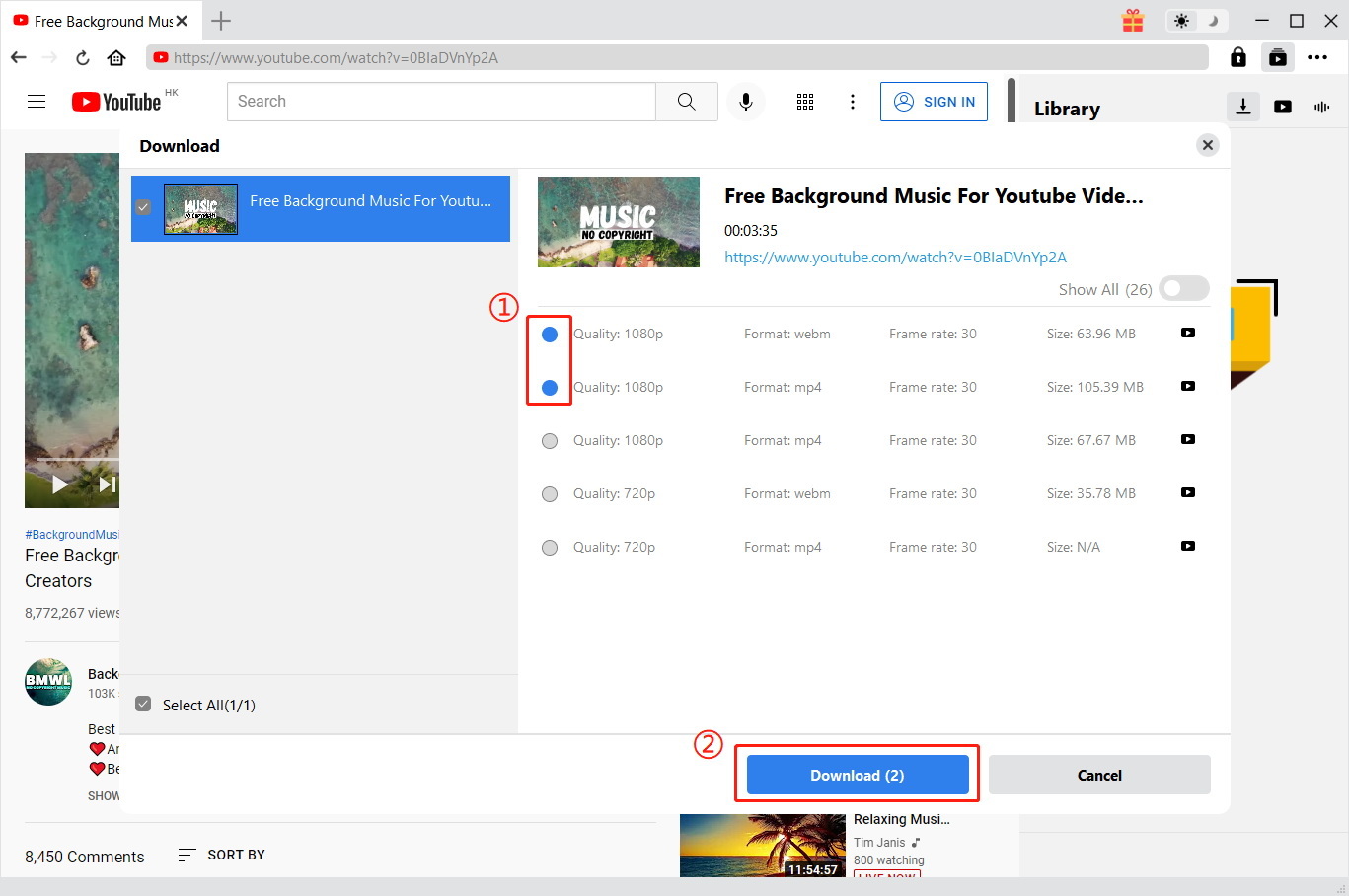
Step 4: Monitor the Downloading Process
Go ahead, click the “Downloading” tab to see the current progress. In this tab, you can pause, stop, or cancel tasks anytime.
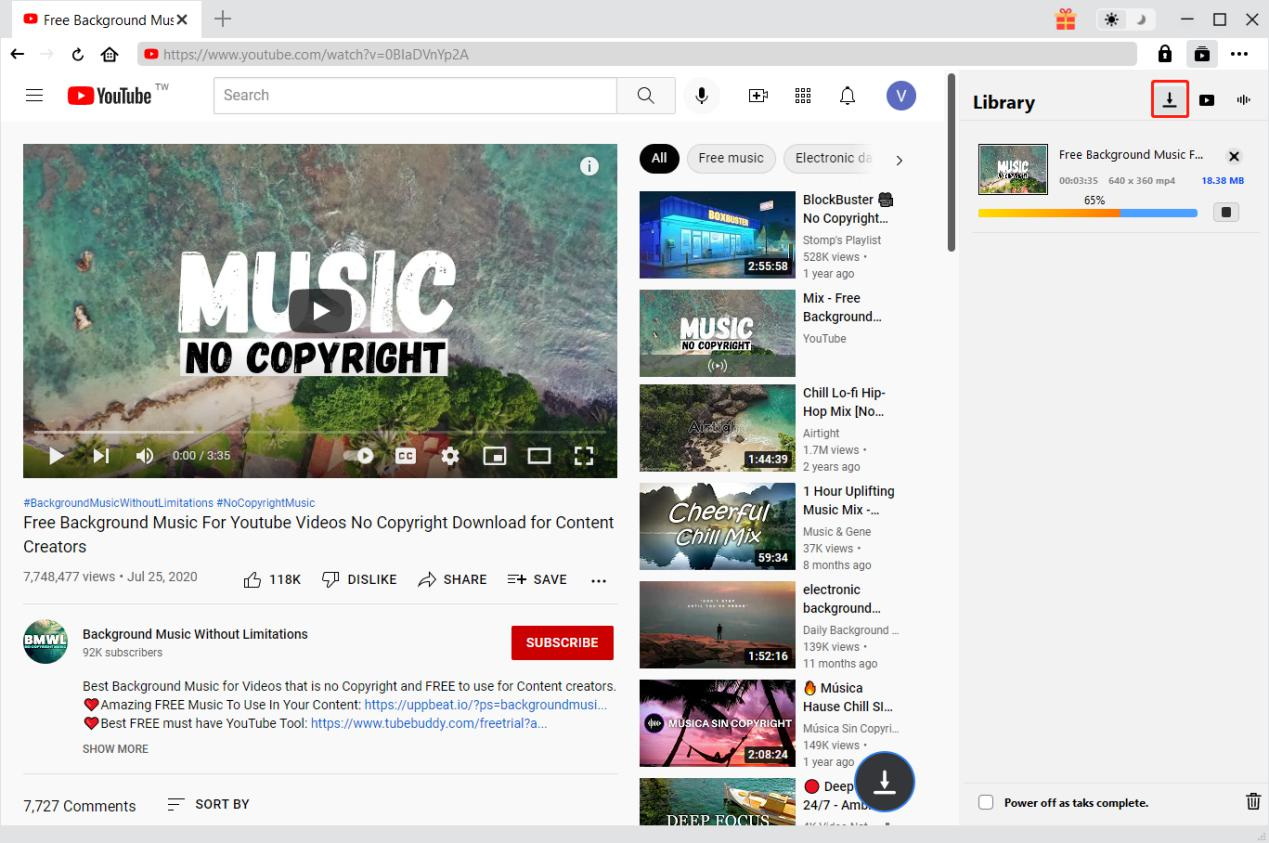
Once the download is finished, it is complete. Go to the “Downloaded” tab to find your file. You can play it directly with your default media player.
How to Convert M3U8 to MP4 with FFmpeg
Another method to use is FFmpeg. FFmpeg is a nice, powerful, open-source multimedia framework. You can use FFmpeg on Windows, macOS, Linux, and even iOS/Android devices. FFmpeg will help you convert the M3U8 to MP4 without losing quality. However, the downside is that FFmpeg doesn’t have a user-friendly interface. The point is you will have to run command lines. It is not a problem if you are a professional user. Here’s how you can use it step by step:
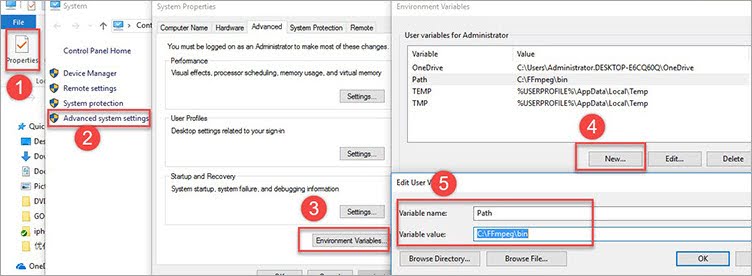
Step 1. Go to www.ffmpeg.org and download it for your device. Make a folder for the program and the files you will unpack. Then set the Environmental Variables to C:\FFmpeg\bin.
Step 2. Now you need to find the M3U8 link by opening Inspect > Network in your browser. Then write the command line “ffmpeg -i http://…/playlist.m3u8 -c copy -bsf:aac_adtstoasc output.mp4” in a Text Document. Replace http://…/playlist.m3u8 with the link you copied from the web.
Step 3. Search for “Command Prompt” in the Windows Search box and open it. Paste the command line into it and press Enter.
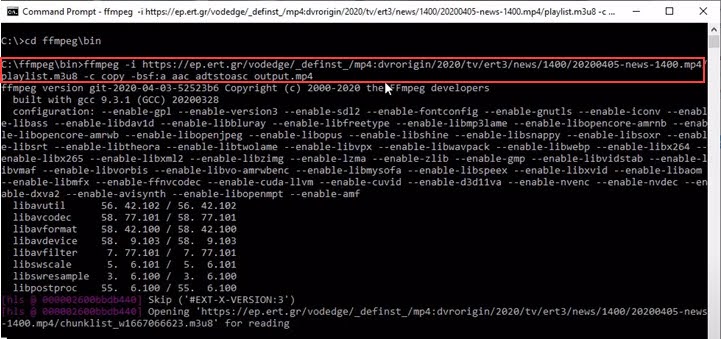
Step 4. After the process is done, you can find the MP4 video at the path mentioned before the command line, like C:\ffmpeg\bin, for example.
Pros:
- Completely free and open-source
- Maintains original video quality
- Compatible with almost every operating system
Cons:
- No user interface, requires using command lines
- More complex setup for beginners
How to Convert M3U8 to MP4 with VLC
VLC Media Player is another widely known player for playing M3U8 files. You can also use it to convert them to MP4. The downside is that it doesn’t support batch conversion. Despite this, VLC is a simple and free option for single-file conversions.
Step 1: Get VLC Media Player from the official website and install it on your device. Then launch the program.
Step 2: Go to the Media menu and select “Open Network Stream”. Now you will get access to the Open Media window.
Step 3: Now paste your copied M3U8 URL into VLC. At the end, just switch from “Play” to “Convert”.
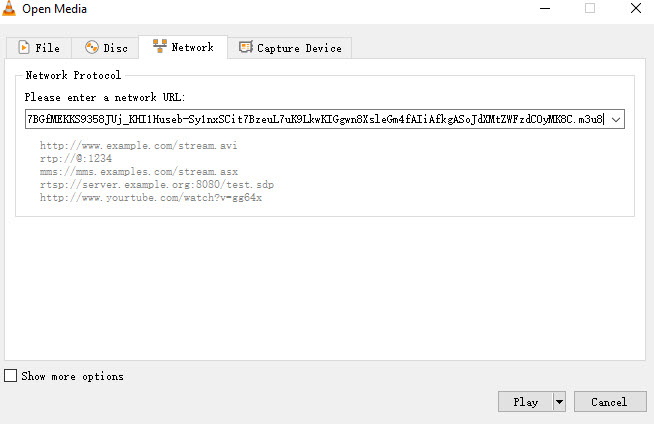
Step 4: Now you need to choose MP4 with H.264 codec as the profile. Search below and select the destination folder. You can also name the file and confirm video settings.
Step 5: All done! Just click “Start” to begin converting the M3U8 file to MP4. Once finished, check the output folder for your converted video.
Pros:
- Free and lightweight
- Works on Windows, macOS, Linux, and mobile
- Can convert single M3U8 files to MP4
Cons:
- No batch conversion support
- Conversion requires full playback of the video
FAQs
Q1: Can I convert M3U8 to MP4 on Android?
Yes, you can use a reliable third-party m3u8 downloaders like CleverGet All-in-One downloader. This tool can easily download M3U8 to mp4 files directly on your device. You just need to simply copy and paste the M3U8 file link.
Q2: Is there a way to convert M3U8 to MP4 online?
Yes, you can. There are several online converters you can use. However, remember online converters come with limitations. For example, there will be limitations like file size limits, slower conversion speeds, or sometimes you end up with failed DRM-protected streams.
Q3: How do I open M3U8 files?
You can open M3U8 files with a regular player like VLC. If that does not work for you, you can convert them to MP4 for playback on devices that don’t support M3U8.
Q4: Can I preserve subtitles and audio tracks when converting M3U8?
Yes, tools like CleverGet can help you with that. It allows you to select multiple audio tracks and subtitles to keep during conversion.
Conclusion
It’s very easy to convert M3U8 to MP4 when you know the right tools and methods. The conversion from M3U8 to MP4 will help you to enjoy streaming videos offline and on your devices. Out of all the options we discussed today, like CleverGet All-in-One is the best overall. It’s good for easy conversion of any file to multiple formats. Unlike other tools, you don’t need to work with command lines or long steps; just copy and paste, and you are done.
-
How to Record Any Streaming Video on Mac Safely?Cassie/2026-03-30
-
How to Record Discord Audio on Windows, Mac & MobileCassie/2026-02-27
-
Instagram Viewer Guide: How to View Instagram AnonymouslyCassie/2026-01-30
-
Why Does YouTube Keep Pausing? Causes and Easy FixesCassie/2025-12-26
-
How to Record Facebook Live Stream for Free on PC?Cassie/2025-11-27
-
3 Best Methods to Play Blu-ray on VLCCassie/2025-10-30
-
3 Best Tools to Convert M3U8 to MP4 Without ErrorsCassie/2025-09-26
-
5 Best Methods to Open an ISO File EasilyCassie/2025-08-28
-

Discover 8 Video Platforms Like YouTube NowCassie/2025-08-13
-
Anonymous Mode: How to View Twitter Without an Account?Cassie/2025-05-26
-

4 Ways to Download Movies from FMoviesLeia/2024-05-30
-

Top 5 Disappointments of iOS 6 Apple Users GetTony/2012-09-27
-

Is Watchseries Safe to Use? What Are the Best Watchseries AlternativesPatrick/2024-11-01
-
6 Best URL to MP4 Converters to Download URL to MP4August/2023-09-11
-
23 iPhone 5 Rumors Listed from A to WTony/2012-09-13
-
2 Methods to Convert Flash EXE to Flash SWFTony/2012-08-28
-
Top 10 CouchTuner Alternatives for Free Movies & Shows 2026Max Will/2025-04-29
-
10 Best Project Free TV Alternatives to Watch Movies/Shows OnlineMax Will/2025-04-29
-

Top 8 Free YouTube Proxy Sites for YouTube Unblocked 2024Lumi/2024-09-24
-
How to Free Download iBOMMA Telugu Movies in HDMax Will/2025-04-29