Last updated on 2025-10-30, by
3 Best Methods to Play Blu-ray on VLC
Summary:
- VLC, by default, does not play commercial Blu-ray dsics directly. This article will share 3 easy ways to watch Blu-ray movies on VLC, and a free VLC alternative to play back Blu-ray disc on PC.
Can VLC play Blu-ray? Though VLC is one of the most versatile media players available, it cannot play Blu-ray discs because it lacks the built-in decryption support. This support is necessary to handle AACS or BD+-protected discs. Actually, the main goal of these encryption systems is to prevent copying and playback on unauthorized software. For these reasons, VLC can’t open them with built-in features.
However good news is for you is that with a few simple hacks and tweaks, you can make your Blu-ray play on your VLC. In this article, we will share 3 methods to play Blu-ray on VLC.
OutlineCLOSE
Method 1: Use VLC with MakeMKV
One of the simplest ways to play Blu-ray discs in VLC is by using MakeMKV. This free tool temporarily removes the disc’s encryption. Once your disc is decrypted, VLC will automatically play your disc. Now, let me show you below how you can do this step by step.
Step 1: First, download and install the latest versions of VLC Media Player and MakeMKV. Download from their official websites. Next, you need to make sure the VLC file you downloaded is fully updated. If it requires an update, then do it.
Step 2: Now, go ahead and place your Blu-ray disc into your computer’s Blu-ray drive. Next, wait a few seconds for the system to detect your disc.
Step 3: Next, go ahead and open MakeMKV. Once opened, find the Blu-ray drive icon. You will find this icon on the main screen. When you click it, the software will scan the disc and display its titles and content.
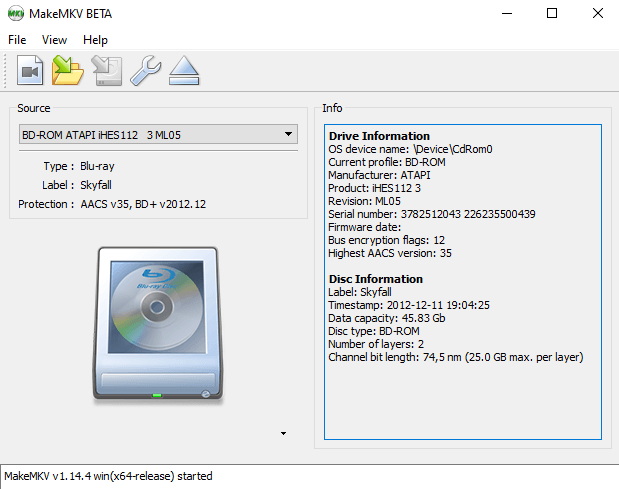
Step 4: After your disc is loaded, click on the “Stream” option. Sometimes you can see a button, “MakeMKV Stream,” in some versions of MakeMKV. After clicking, it will start a temporary server that allows VLC to play the Blu-ray content.
Step 5: After you enable streaming, MakeMKV will display a local streaming address. You will see this typically in the format http://localhost:51000. Copy this address.
Step 6: In VLC, go to the menu and click on Media > Open Network Stream. Here you can paste the copied address and click Play.
Step 7: Your Blu-ray movie should now start playing in VLC with high-quality video and audio. You can also use VLC’s subtitle and audio track options just like any other video.
Tip: This method doesn’t permanently decrypt or save the Blu-ray, and it only streams it in real-time, which keeps things simple and safe.
Pros
- Completely free to use
- Doesn’t permanently rip or modify the Blu-ray
- Simple to set up
- Maintains original Blu-ray quality
Cons
- MakeMKV needs to stay open while streaming
- Streaming might stutter on older or slower PCs
- Doesn’t work with every encrypted Blu-ray disc
Method 2: Use VLC with AACS Library and Key Database
For some reason, if the first method does not work for you, then you can use this 2nd method here. For this method, you can try to play Blu-ray discs in VLC by installing the required AACS decryption library and keys database:
Step 1: First, visit the official website of VLC and install the latest version of VLC Media Player (version 2.0 or later is required).
Step 2: Next, go to the site vlc-bluray.whoknowsmy.name and download two files:
- The latest KEYDB.cfg (the key database)
- The correct libaacs.dll (or equivalent library) for your system (32-bit vs 64-bit)
Step 3: After that, locate the “appdata” folder on your computer. Next create the AACS folder. On Windows: go to C:\Users\
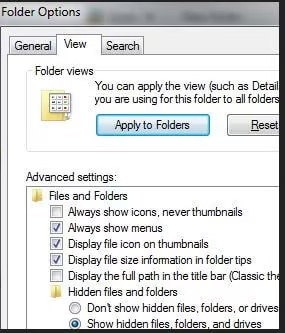
Step 4: Inside AppData, you should create a new folder named aacs, if not already there. Next, you need to place the downloaded KEYDB.cfg file in that folder.
Step 5: Now go to your VLC installation directory (usually C:\Program Files\VideoLAN\VLC or C:\Program Files (x86)\VideoLAN\VLC for 64-bit systems) and copy the downloaded libaacs.dll into that folder. Make sure you choose the correct version for your architecture.
Step 6: Next, open VLC, then choose Media > Open Disc, select the Blu-ray option, choose your disc drive, and click Play. Now, if you follow all the steps and set up everything correctly, your disc should begin playing.
Pros
- Works directly within VLC
- Play supported Blu-rays easily anytime
- Lightweight and doesn’t require file conversion
Cons
- Not easy to use for beginners
- Key database updates are manual
- Some Blu-rays with advanced encryption still won’t play
Method 3: Decrypt and Convert Blu-ray for VLC
If none of the above methods work for you, then a reliable workaround is to decrypt and convert your Blu-ray into a playable digital file. For this purpose, there are so many Blu-ray ripping tools available. One of the most recommended tools is Leawo Blu-ray Ripper. This tool will help you decrypt, rip, and convert both Blu-ray and DVDs into over 180 video and audio formats. With Leawo Blu-ray Ripper, you can convert your discs to MP4, MKV, AVI, WMV, MOV, or even extract audio tracks in MP3, AAC, or FLAC.

-
- Decrypt, rip and convert Blu-ray/DVD disc, folder and ISO image file.
- Remove various disc protections and region restrictions.
- Convert Blu-ray/DVD to video/audio in 180+ formats.
- Edit Blu-ray/DVD movies before converting.
- Convert regular Blu-ray/DVD to 3D videos.
This method lets you play your Blu-ray movies smoothly on VLC, smartphones, smart TVs, gaming consoles, and just about any media player without worrying about encryption or disc compatibility.
Now, let me quickly show you simple steps to convert Blu-ray or DVD for VLC. Open the software and on the main screen, click Convert or select Blu-ray/DVD Ripper from the main screen. Now you will see a conversion menu.
Step 1: Import Source DVD Files into the Program
First of all, in the main screen, click the “Add Blu-ray/DVD” button to load your DVD, folder, or ISO image file. If you want to drag and drop, you can also do it here. Once you load your file, you’ll get three import options: Full Movie, Main Movie, and Custom Mode.
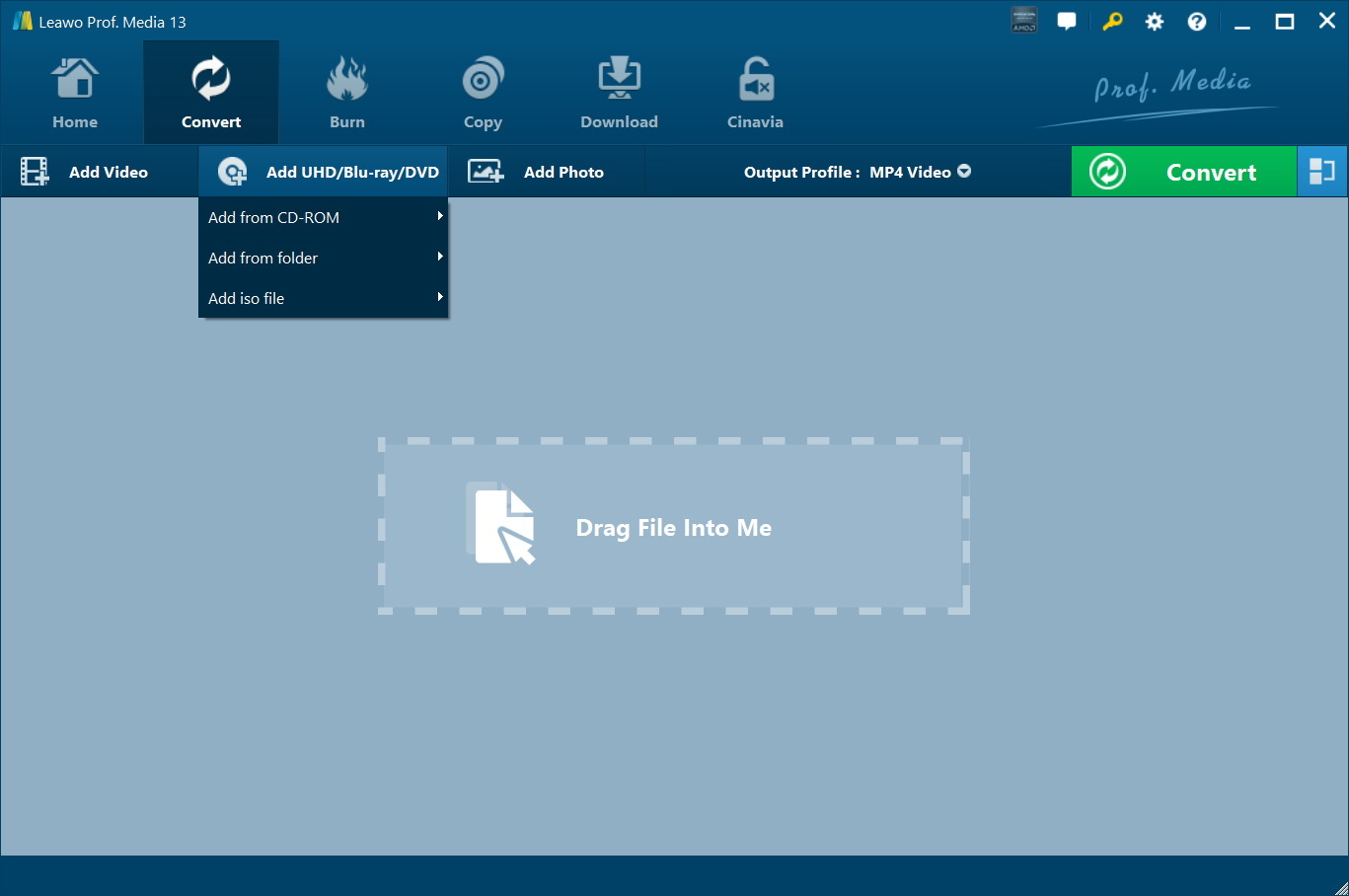
Step 2: Choose Output Format
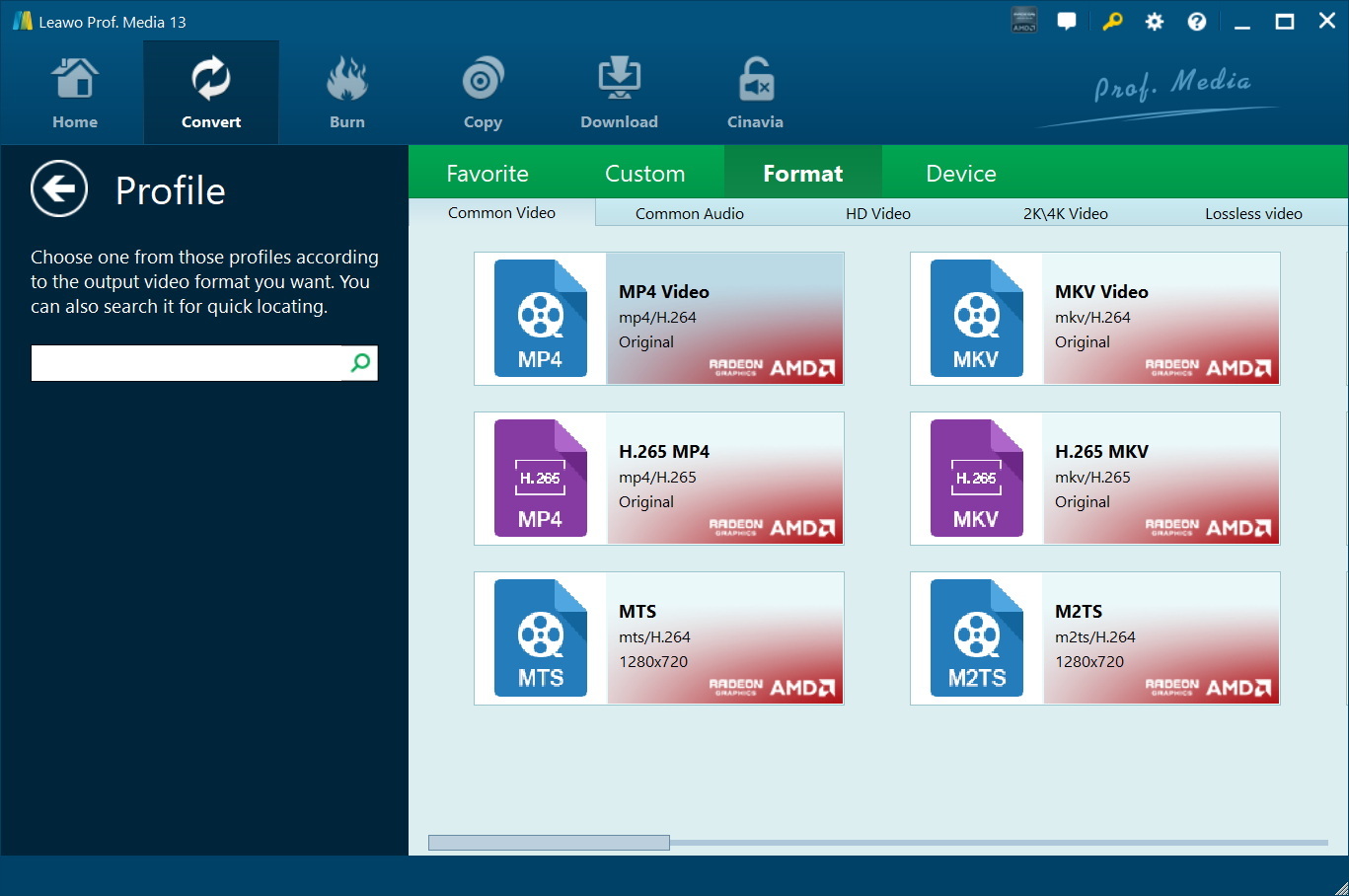
By default, the output format is set to “MP4 Video.” Here, click the drop-down arrow next to it and select “Change” to open the Profile panel. Here, you can also pick from a wide range of video and audio formats. You can select from 4K MP4 and HD AVI to device-optimized profiles for iPhone and iPad. You can choose the one that best fits your playback device or preference, then confirm your selection.
Step 3: Set Output Directory
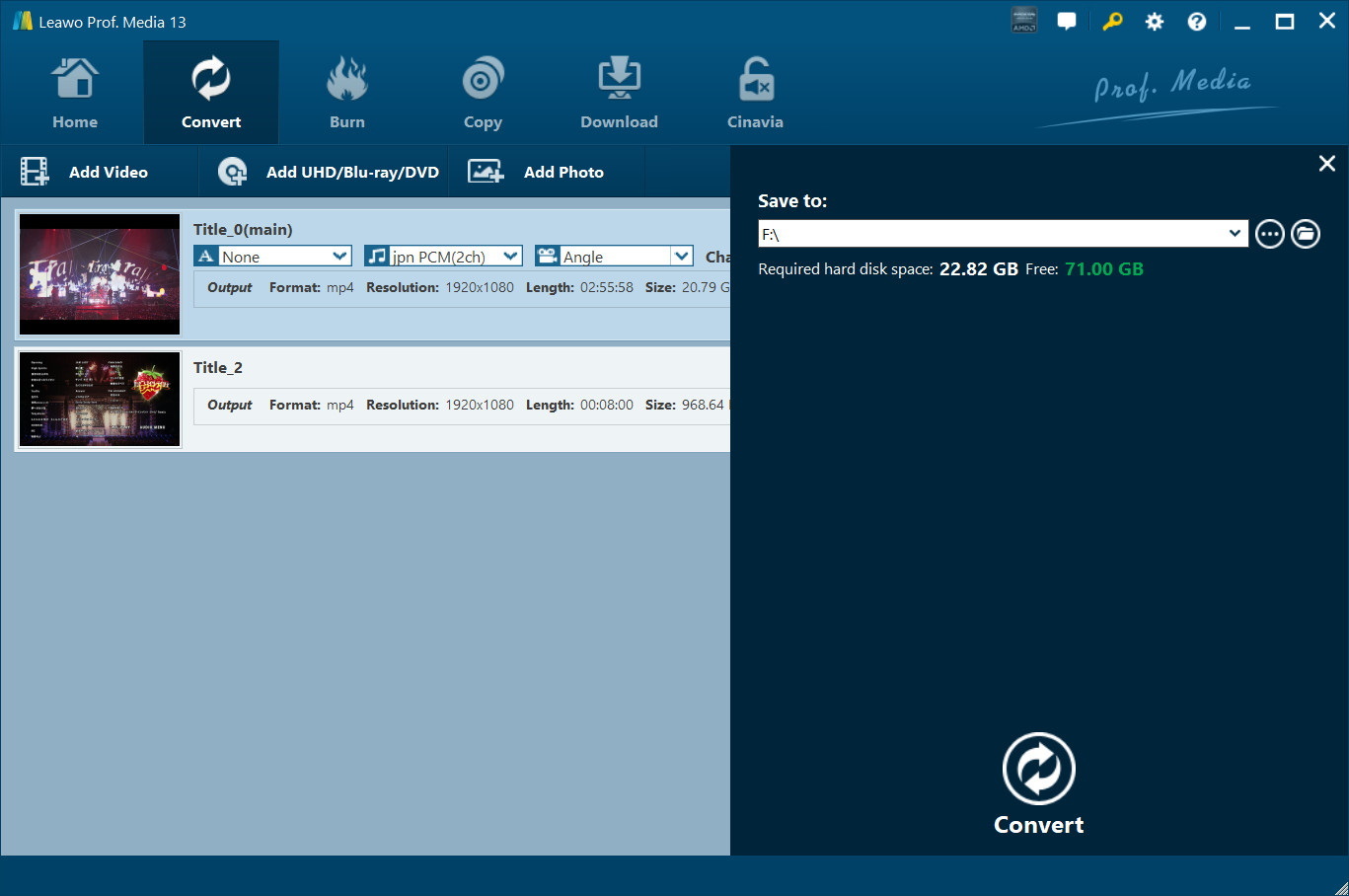
Once you have selected your output format, just click the green “Convert” button at the bottom of the window. You will see a sidebar. Here you can choose where you want to save your file. Next, click Confirm to start the conversion process.
Step 4: Start the Conversion
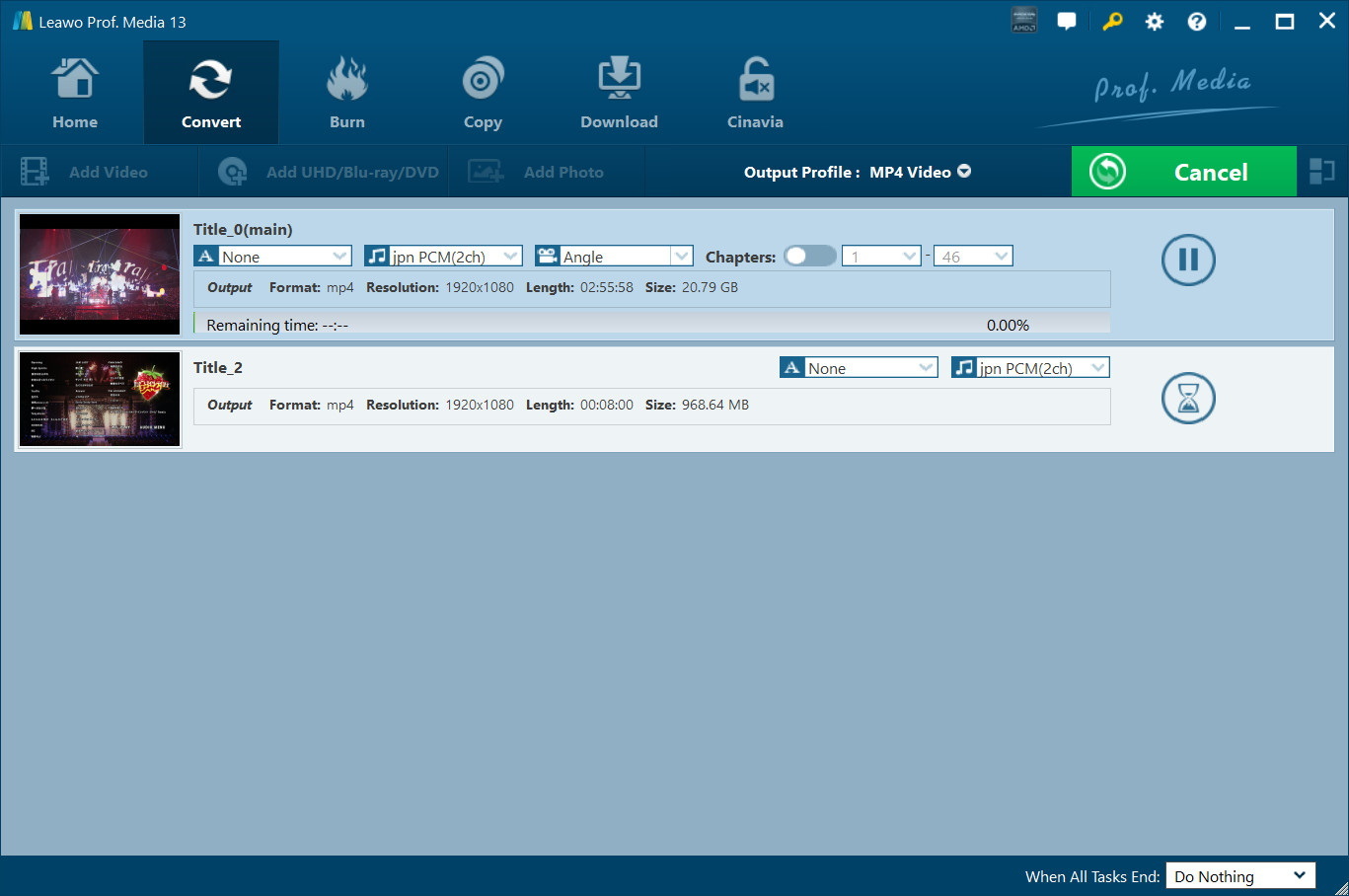
Now you need to click on the Convert button again to start ripping. You’ll see a progress bar as the program decrypts and converts the Blu-ray into your chosen format. After the conversion process, you can open the converted file in VLC and enjoy smooth playback with no AACS or region code errors to worry about.
Pros
- 100% success rate for all encrypted discs
- Let’s you play Blu-ray movies on any media player or device
- Offers format flexibility (MP4, MKV, AVI, etc.) and high-quality output
- Allows subtitles, multiple audio tracks, and even 4K support
Cons
- Software installation needed
The Best VLC Player Alternative: Leawo Free Blu-ray Player
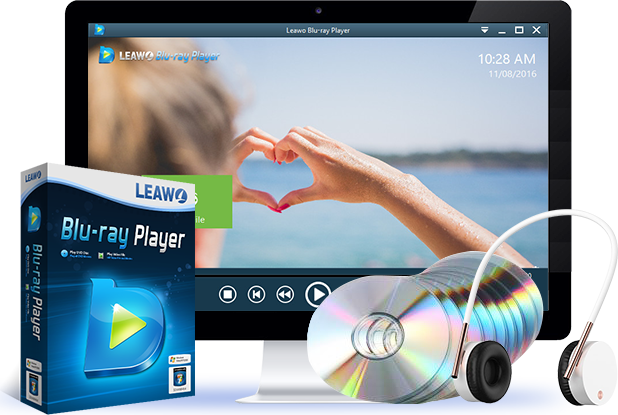
If you want a simple way to enjoy your Blu-ray movies without any extra setup, then Leawo Free Blu-ray Player is a great alternative to VLC. It’s a 100% free media player that can smoothly handle 4K Blu-ray, regular Blu-ray, DVDs, folders, and ISO files on both Windows and Mac. Leawo Blu-ray Player is a nice choice for anyone who wants an all-in-one Blu-ray solution. You will get clear image quality and smooth playback, no matter if you’re watching high-quality Blu-ray movies or regular videos.
-
- Region-free Blu-ray player to play 4K Blu-ray and Blu-ray disc, folder and ISO file.
- Region-free DVD player to play DVD disc, folder and ISO file.
- HD video player to play videos of up to 4K quality in various formats.
- Audio player to play audio files in various formats.
- Totally free to use. No subscription is required.
Conclusion
The methods we discussed above in this article will make it possible to watch your discs on VLC. However, if no method works for you, then you can use Leawo Blu-ray Ripper to rip your DVDs. It’s a useful tool for decrypting and converting Blu-ray or DVD content so that you can play it smoothly on VLC or any other device. Just simple steps, and you can rip your DVD in a few minutes. Also, you can use Leawo Blu-ray Player to watch your Blu-ray movies in high quality with no technical fuss and no need to set anything up. Either way, you’ll be able to watch your favorite Blu-ray movies on your computer again in no time.
-
How to Record Any Streaming Video on Mac Safely?Cassie/2026-03-30
-
How to Record Discord Audio on Windows, Mac & MobileCassie/2026-02-27
-
Instagram Viewer Guide: How to View Instagram AnonymouslyCassie/2026-01-30
-
Why Does YouTube Keep Pausing? Causes and Easy FixesCassie/2025-12-26
-
How to Record Facebook Live Stream for Free on PC?Cassie/2025-11-27
-
3 Best Methods to Play Blu-ray on VLCCassie/2025-10-30
-
3 Best Tools to Convert M3U8 to MP4 Without ErrorsCassie/2025-09-26
-
5 Best Methods to Open an ISO File EasilyCassie/2025-08-28
-

Discover 8 Video Platforms Like YouTube NowCassie/2025-08-13
-

Anonymous Mode: How to View Twitter Without an Account?Cassie/2025-05-26
-

4 Ways to Download Movies from FMoviesLeia/2024-05-30
-

Top 5 Disappointments of iOS 6 Apple Users GetTony/2012-09-27
-

Is Watchseries Safe to Use? What Are the Best Watchseries AlternativesPatrick/2024-11-01
-
6 Best URL to MP4 Converters to Download URL to MP4August/2023-09-11
-
23 iPhone 5 Rumors Listed from A to WTony/2012-09-13
-
2 Methods to Convert Flash EXE to Flash SWFTony/2012-08-28
-
Top 10 CouchTuner Alternatives for Free Movies & Shows 2026Max Will/2025-04-29
-
10 Best Project Free TV Alternatives to Watch Movies/Shows OnlineMax Will/2025-04-29
-

Top 8 Free YouTube Proxy Sites for YouTube Unblocked 2024Lumi/2024-09-24
-
How to Free Download iBOMMA Telugu Movies in HDMax Will/2025-04-29