Last updated on 2026-02-27, by
How to Record Discord Audio on Windows, Mac & Mobile
Summary:
- This article explains how to record Discord audio on Windows, Mac, iPhone, and Android using simple tools and built-in recording methods. Among all options, Leawo Free Screen Recorder is recommended as the easiest and highest-quality solution for most users.
Many times, recording Discord audio is useful. For example, you want to save important conversations, gaming sessions, or online meetings. However, as we know, Discord has no built-in recording feature. So, to record, you need third-party tools, and you also need to know how you can record Discord audio on different devices. This article is all about this. We will show you simple methods to record Discord audio on Windows, Mac, and your mobile while keeping good sound quality and ease of use. Let’s begin.
OutlineCLOSE
How to Record Discord Audio on PC?
To record on your PC, you need to have a very reliable screen or audio recording software. Below, we will share two practical methods that you can use to record Discord audio on Windows and Mac.
1. Record Discord Audio on Windows with Leawo Free Screen Recorder
The first recommendation is Leawo Free Screen Recorder. This is a free and easy-to-use recording tool. You can use this tool to record video with system audio, microphone sound, and webcam recordings. This tool is really handy for someone who is looking to record Discord audio calls, game chats, or online meetings while keeping sound quality clear. And for video recording, this software supports high-resolution recording up to 4K. So, that means you will not end up with bad quality videos. It is suitable for both casual and professional use. Since it records directly from system audio, it works well for capturing Discord conversations, streaming audio, or online video sound.

-
- Support to record gameplay at up to 4K without watermark.
- Provide various doodle and annotation tools for free.
- Add background music or voiceover to video.
- Output files in MP4/MP3/JPG formats.
- Integrate more advanced functions like real-time drawing, scheduled recording, shortcut controls, etc.
Here is how to use it.
Step 1: First, you need to open Leawo Free Screen Recorder and then open the settings menu.
Step 2: Next, go ahead and choose your preferred audio quality, output folder, and detailed recording features.
Step 3: Now you need to select the Record Audio tool.
Step 4: Make sure to enable your system sound to record Discord. You can turn on the microphone if you want to capture your voice.
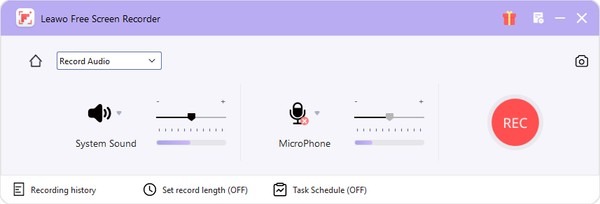
Step 5: After setting everything open Discord and start the voice call or audio you want to record. Click Record in Leawo.
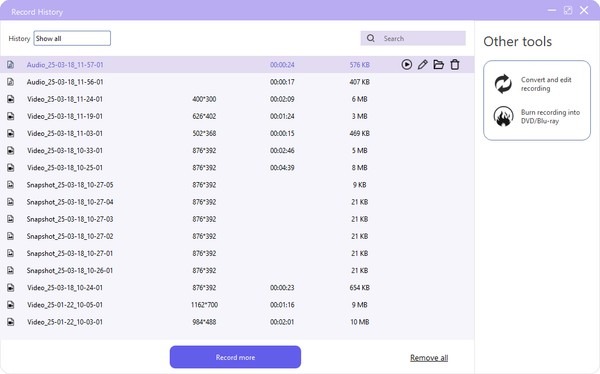
Step 6: Once done, click Stop. Next, you will be guided to the “Record History” window, where you can view all recorded audio files.
2. Record Discord Audio on Mac with OBS
The next option is OBS Studio. It is a popular free and open-source recording software. You can use this tool for screen recording, streaming, and only for audio recording. It works with many online platforms. It is a recommended option, especially for Mac users, because this tool offers more control over audio sources, recording quality, and output settings. Also, it works fine for recording Discord voice chats, game audio, or online meetings. But it’s a little complicated to use. Here is the step-by-step method to use it.
Step 1: First, download and install OBS Studio on your Mac from the official website. After installing it, open it.
Step 2: Next, open Settings > Audio and select system audio or desktop audio as your main sound source.
Step 3: Now, on your main interface, click the + button under Sources and choose Audio Output Capture.
Step 4: After this, go to Discord and start your voice call or audio playback.
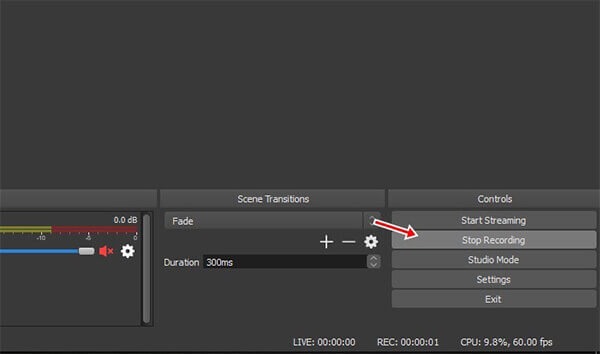
Step 5: Now in OBS, click Start Recording. Your audio will start recording.
Step 6: Once done, click Stop Recording. Your file will be saved in the output folder you selected.
3. Record Audio on Discord with Recording Bot
If you are someone who does not want to record Discord audio without external software, then we recommend that you use a recording bot inside your server. It is one of the most direct ways. Recording bots work in a way that they will join your voice channel and will save the audio from everyone speaking. It’s a very popular method for those who want to record podcast sessions, meetings, and game recordings. Here are some commonly used Discord recording bots listed on top.gg:
- Craig: multi-track voice recorder
- Vexera: Good for music and audio features
- MEE6 with recording plug-ins
- Red Discord Bot with audio plug-ins
- Zandercraft Recorder
Below are steps to record Discord audio with a recording bot:
Step 1: First, open the official bot loading site and invite a recording bot (for example, Craig) to your Discord.
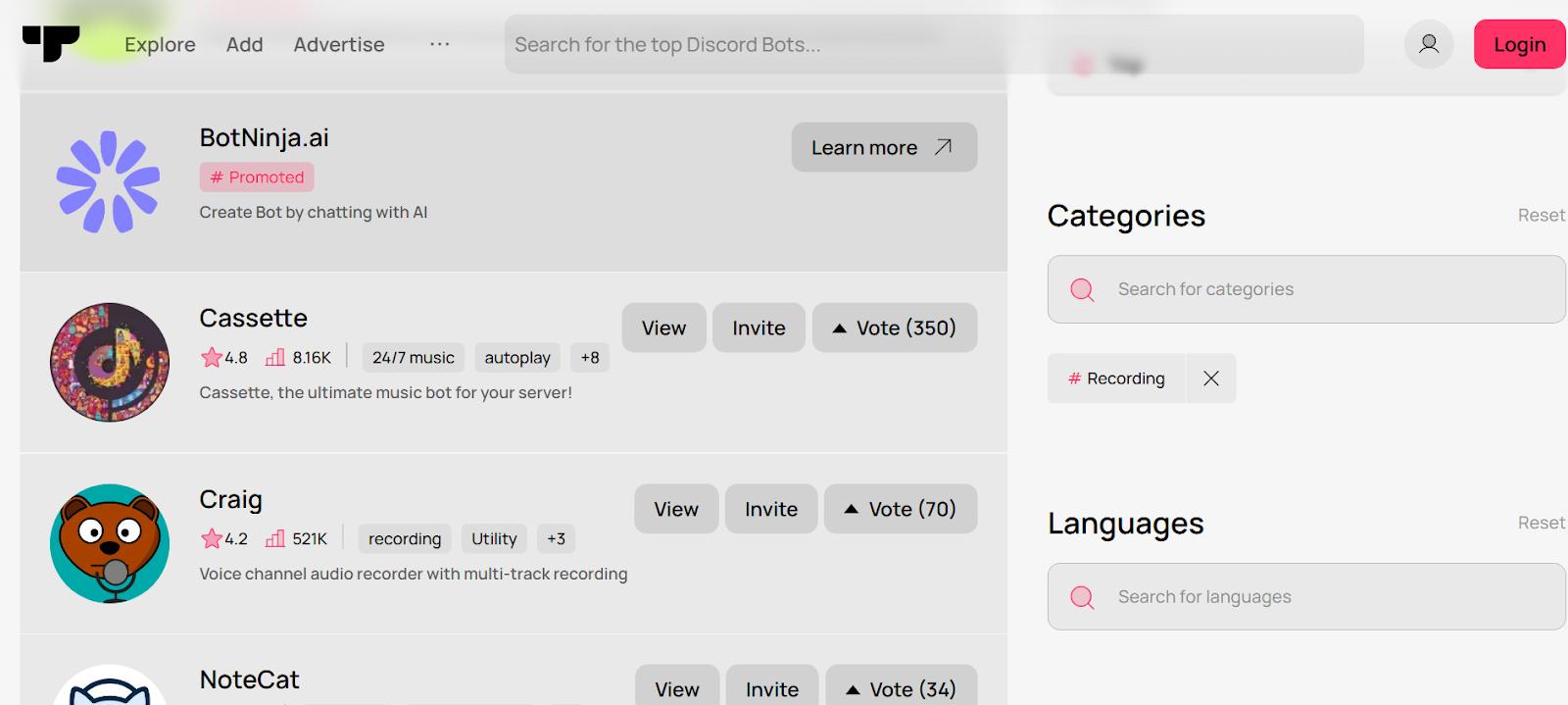
Step 2: After invite the bot will ask for certain permissions, provide those so it joins voice channels on your server.
Step 3: Join a voice channel where you want to record audio.
Step 4: Next, you need to use the bot’s record command. For example, type Craig:, join so the bot joins the channel and starts recording.
Step 5: Once recording is done, use the stop command, for example, Craig leaves and downloads the saved audio file provided by the bot.
Part 2: How to Record Discord Audio on iPhone & Android
If you are on the phone, then you can use the built-in Recording features to record Discord audio. For mobile users, built-in methods are the most straightforward way to record audio from Discord. Below, we will show you how you can record audio from Discord on iPhone and Android devices.
1. Record Discord Audio on iPhone
On iPhone, you can use the built-in screen recording feature to record Discord audio. It’s the simplest method because you do not have to download additional apps, and it works directly on your iPhone.
Step 1: Open Settings > Voice Memos to adjust recording setting, such as choose your preferred audio quality if necessary.
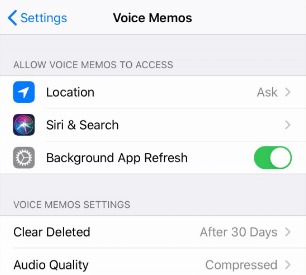
Step 2: Then, open the Voice Memos app.
Step 3: Press red Record button to start recording.
Step 4: Next, open Discord and join the voice chat you want to record.
Step 5: Once done, stop recording and find the saved video file in your Photos app. (Note: Voice Memos saves audio separately; the final file is in Voice Memos library, not Photos. The instruction “find the saved video file in your Photos app” is kept as original, though it likely refers to screen recording. We retain original wording.)
2. Record Discord Audio on Android
On Android devices, the audio recording feature is available too, so you can use that.
Step 1: Search for Voice Recorder app in the Settings on your Android phone.
Step 2: Make sure to enable recording permissions (such as “Microphone”, and “Music and audio”) to capture Discord voice chat.
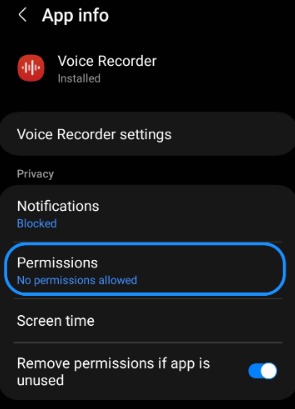
Step 3: Open Voice Recorder app and click the red recording button.
Step 4: Next, open Discord and join the voice channel you want to record.
Step 5: Once done, stop recording and save the file to your gallery or storage folder.
Conclusion
It’s easy to record Discord audio once you choose the right method for your device. There are methods available for desktop software, mobile audio recording, or recording bots. The best option depends on your needs for quality, convenience, and control. However, the simplest and most reliable way to record Discord audio is Leawo Free Screen Recorder. It’s reliable because it supports high-quality recording, multiple audio sources, and easy setup without complicated settings. For most users, it is the best balance between performance and simplicity when learning how to record Discord audio.
-
How to Record Any Streaming Video on Mac Safely?Cassie/2026-03-30
-
How to Record Discord Audio on Windows, Mac & MobileCassie/2026-02-27
-
Instagram Viewer Guide: How to View Instagram AnonymouslyCassie/2026-01-30
-
Why Does YouTube Keep Pausing? Causes and Easy FixesCassie/2025-12-26
-
How to Record Facebook Live Stream for Free on PC?Cassie/2025-11-27
-
3 Best Methods to Play Blu-ray on VLCCassie/2025-10-30
-
3 Best Tools to Convert M3U8 to MP4 Without ErrorsCassie/2025-09-26
-
5 Best Methods to Open an ISO File EasilyCassie/2025-08-28
-

Discover 8 Video Platforms Like YouTube NowCassie/2025-08-13
-
Anonymous Mode: How to View Twitter Without an Account?Cassie/2025-05-26
-

4 Ways to Download Movies from FMoviesLeia/2024-05-30
-

Top 5 Disappointments of iOS 6 Apple Users GetTony/2012-09-27
-

Is Watchseries Safe to Use? What Are the Best Watchseries AlternativesPatrick/2024-11-01
-
6 Best URL to MP4 Converters to Download URL to MP4August/2023-09-11
-
23 iPhone 5 Rumors Listed from A to WTony/2012-09-13
-
2 Methods to Convert Flash EXE to Flash SWFTony/2012-08-28
-
Top 10 CouchTuner Alternatives for Free Movies & Shows 2026Max Will/2025-04-29
-
10 Best Project Free TV Alternatives to Watch Movies/Shows OnlineMax Will/2025-04-29
-

Top 8 Free YouTube Proxy Sites for YouTube Unblocked 2024Lumi/2024-09-24
-
How to Free Download iBOMMA Telugu Movies in HDMax Will/2025-04-29