Last updated on 2025-08-28, by
5 Best Methods to Open an ISO File Easily
Summary:
- Here are 5 methods to open an ISO file with minimal hassle, including PC built-in tools, free player, file extractor, disc authoring software, and disc ripper.
An ISO file is a digital copy of a CD, DVD, or Blu-ray, and all are neatly packed into one single file. These are basically the virtual containers that hold all the data, folders, and file structures similar to they are on the original disc. These files are mostly used for the distribution of software, backups, or to run large programs without a physical drive. But how do you actually open an ISO file? In this article, we’ll show you the five best methods to open an ISO File easily.
OutlineCLOSE
Method 1: Open an ISO File via Mounting an ISO File
The first method we recommend you try is to open an ISO file by mounting an ISO file. Both Windows and macOS have built-in tools for this method. Let me show you how to do this.
1. Mount ISO on Windows 10/11
To mount your ISO file on Windows 10 or 11, follow the steps below:
Step 1. Open the File Explorer and go to the folder that contains the ISO image.
Step 2. Then, to mount it instantly, double-click the ISO file.
Step 3. Once mounted, the ISO will open like a regular folder. Now you can both view or extract its contents.
Step 4. In case double-clicking doesn’t work for you, select Mount from the context menu by right-clicking the file.
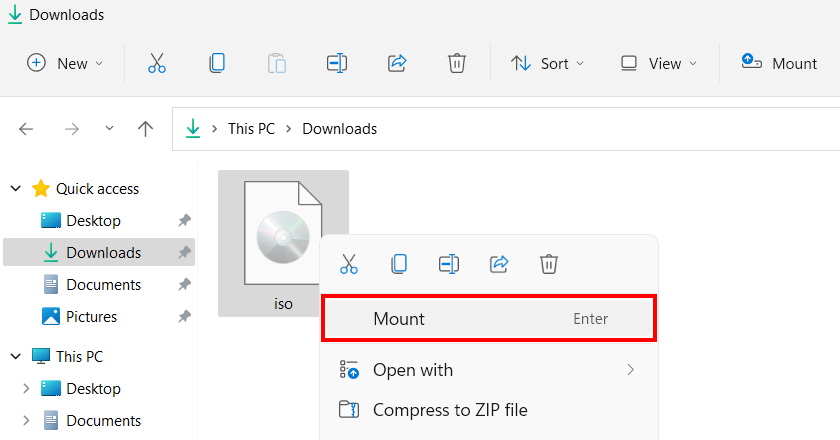
Note: This method works only if no other program is set as the default for ISO files.
2. Mount ISO on macOS
On Mac, follow the steps below:
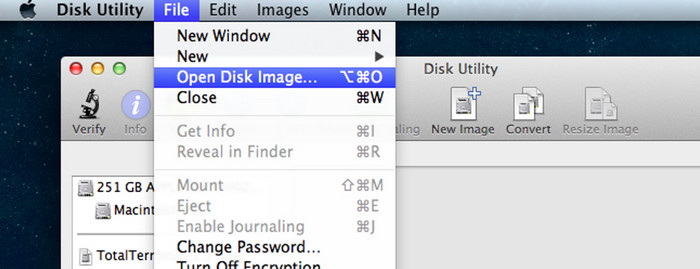
Step 1: Open Finder and locate the ISO file.
Step 2. MacOS mounts the ISO file as a virtual disk image directly upon a double-click.
Step 3: Look for the mounted image on your desktop or in the Finder sidebar.
Step 4: To access or copy content with it, open it like any other folder
Step 5: You can even unmount the mounted image by dragging it to Trash (which turns it into an eject icon) when finished.
Method 2: Open an ISO File with an ISO Player
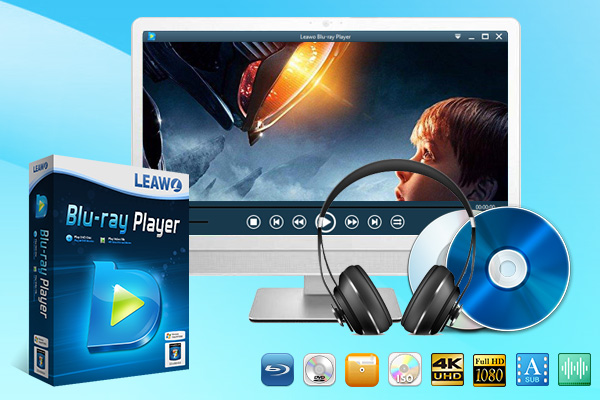
The second method to try is to open your ISO file with a reliable ISO player. The best tool for this task is the Leawo Blu-ray player. With this tool, it’s super easy to play your file. You can control subtitles, video and audio settings. Unlike simple mounting, this method enables the user to experience the ISO files as regular media content, just like playing a disc.
-
All-inclusive digital media player combo to play 4K Blu-ray/Blu-ray/DVD disc, folder and ISO image file, video (up to 8K), and audio files without quality loss.
- Play back discs of various kinds, regardless of disc protection and region restriction.
- Quality-lossless video playback for HD media file.
- Totally free to use. No subscription is required.
Step 1: First, open Leawo Blu-ray Player, then click Open File. Navigate to your ISO file and play it.
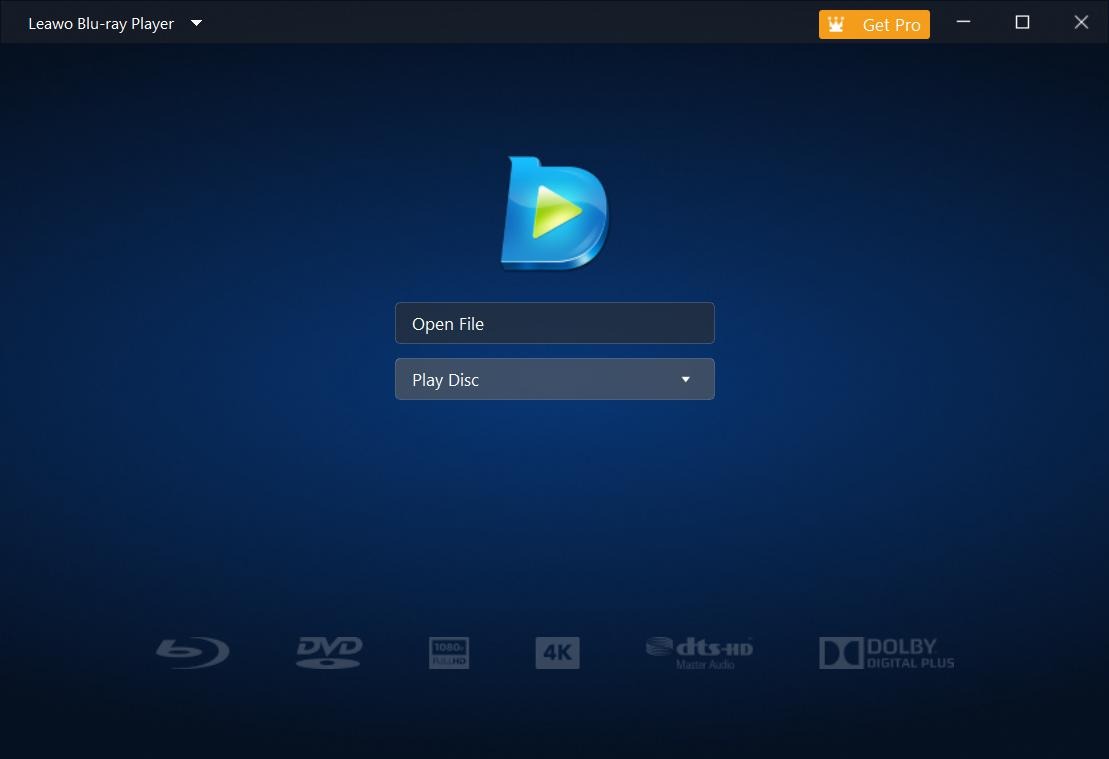
Step 2: As soon as the file is loaded, the ISO content will start playing immediately. You can pause, skip, or navigate chapters (if available) just like a physical disc.
Step 3: If you want to enable subtitles, then right-click during playback and select subtitles. Plus, you can offset the adjustment or load external subtitle files.
Step 4: To enhance your visual experience, you can right-click and select “Videos. Here you can adjust the settings like contrast, aspect ratio and brightness for better viewing.
Step 5: You can easily adjust audio settings by right-clicking and choosing “Audio. You can adjust volume, audio sync. Plus, you can select available audio streams.
Method 3: Open an ISO File by Extracting the ISO File
The third approach is to use an open ISO file by extracting the ISO file. It’s best if you don’t need to run the ISO as a disc and just want to access certain files. You can use tools like 7-Zip or WinRAR to unzip files, which can give you direct access to the file content.
Step 1: First, install a reliable file extraction tool such as WinRAR, 7-Zip, or WinISO on your computer.
Step 2: Next, locate your ISO file, right-click it, and choose “Extract Here” or “Extract to [Folder Name]” depending on your software.
Step 3: Now wait for the extraction process to finish. The content will appear in your selected folder.
Step 4: Once done, you can move, copy, or run the files without mounting the ISO again.
Method 4: Burn ISO to Disc for Playback
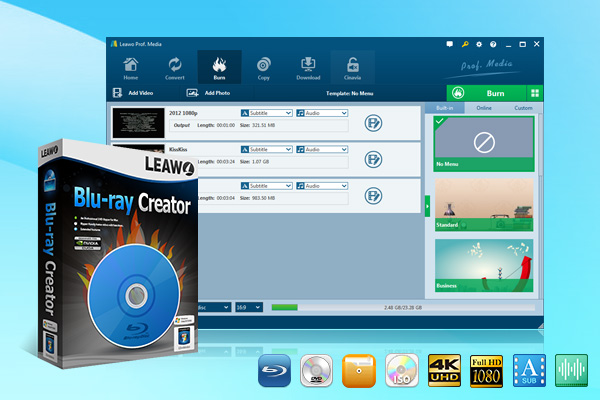
In case you want a physical backup of your file, then your best way to go is to burn your ISO files to Blu-ray easily. For this task, you can use Leawo Blu-ray Creator. This tool will make this process hassle-free. It offers support for multiple disc types. You will have options like BD50, BD25, DVD5, and DVD9. Furthermore, you will have access to over 40 customizable menu templates
These features mean you can turn your ISO file into a professional-quality disc ready for playback on standard Blu-ray or DVD players. Don’t worry about the quality either. The software makes sure that during the burning process, it retains the maximum quality of your file. It’s our ideal recommendations for movie backups, software installations, or archival purposes. Once the burn is complete, the disc can be played on any compatible media device. Here is how to burn ISO files with Leawo Blu-ray Creator.
-
- Burn videos and photos to Blu-ray/DVD in 180+ formats.
- Burn multiple media files to one Blu-ray/DVD file in batch with 100% quality.
- Provide an internal video editor for personalized Blu-ray/DVD content.
- Offer 40+ selectable disc menu templates.
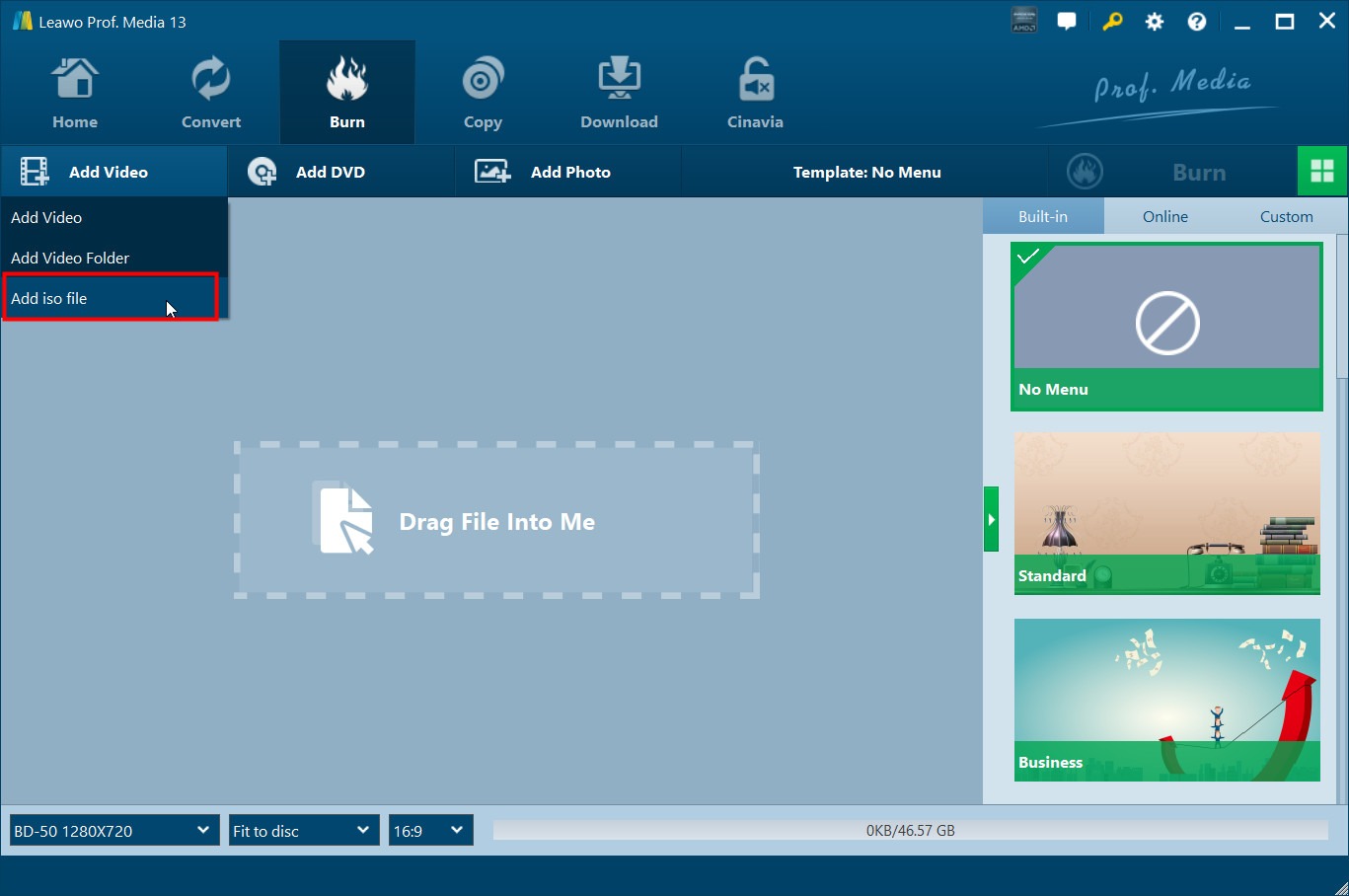
Step 1:Download and install Leawo Blu-ray Creator. In the main interface, click Add File.
Step 2: Next, you will see a pop-up menu, click there and choose the ISO file from the folder of your computer to import to the BD Creator.
Step 3: Now make sure that you’ve inserted a blank disc into your CD-ROM. Once you have an ISO file uploaded, you will see a pop-up window. Here, choose the CD-ROM you put the blank disc in as the target in the Copy to box, and you can edit the disc label.
Step 4: Once all is done, click the Burn button, and you will see your ISO file start burning to the blank disc.
Method 5: Convert ISO to Digital Files
Didn’t any method above work for you? Another smart way to open and access ISO files is by converting them into a standard digital format. You can convert your file to MP4, MKV, or AVI. These formats will make it easy to play your file on different devices without any playback error issues. For the conversion, you will have to use a reliable ripper to do the conversion. Leawo Blu-ray Ripper is one of the best options. This tool offers support for 180+ formats. Furthermore, you will enjoy high-speed conversion (6X faster) and excellent quality retention. The best thing is that it even lets you edit videos, trim, crop, or add effects, etc. Now, let me quickly show you how to use this tool to convert your iso files to digital files.
Step 1: First, download Leawo Prof. Media. Launch it. Now, in the main interface, select the “Blu-ray Ripper” module.
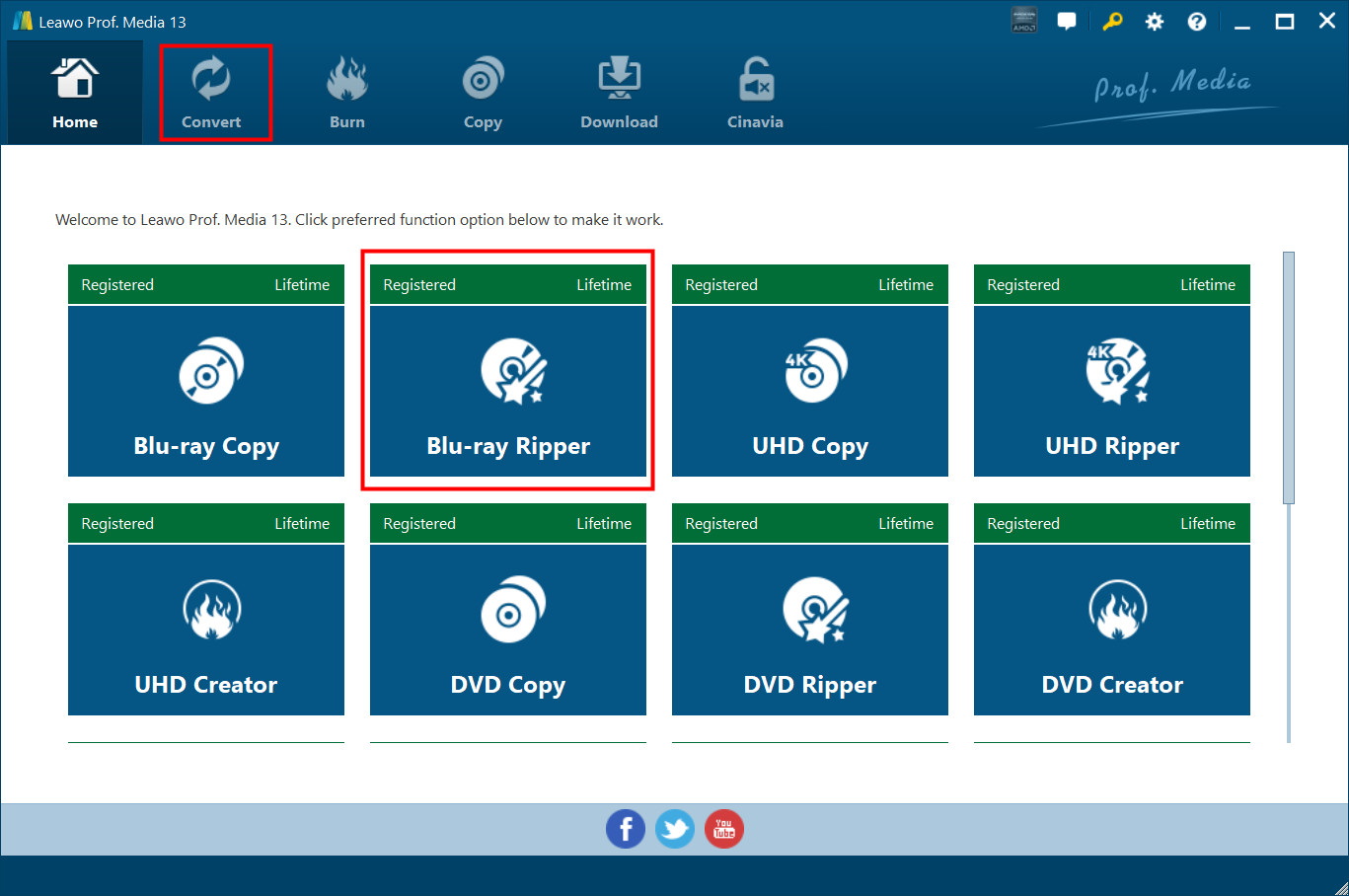
Step 2: In the convert section, add your ISO file. You can also use the drag-and-drop feature here.
Step 3: Now go ahead and choose import mode, you will have different options like Main movie, Full Movie or Custom mode.
Step 4: Now, go ahead and from the Profile panel, choose the output format.
Step 5: You can also edit your video here. For instance, you can add effects, trim or crop it.
Step 6: Next, set an output directory to save the converted file.
Step 7: Finally, click the convert button and convert your ISO files to a digital format.
Conclusion
Opening an ISO file doesn’t have to be complicated. You simply need to choose the method that matches your needs. You can mount it directly on macOS or Windows, or you can use tools like WinRAR or 7-Zip. Or you can use more advanced methods like burning it to a disc for playback, or converting it into flexible digital formats with software like Leawo Blu-ray Creator or Blu-ray Ripper. There’s a solution for every scenario. No matter which method you pick, these five approaches are definitely going to help you play your ISO files easily, fast, and reliably. Thank you for reading!
-
How to Record Any Streaming Video on Mac Safely?Cassie/2026-03-30
-
How to Record Discord Audio on Windows, Mac & MobileCassie/2026-02-27
-
Instagram Viewer Guide: How to View Instagram AnonymouslyCassie/2026-01-30
-
Why Does YouTube Keep Pausing? Causes and Easy FixesCassie/2025-12-26
-

How to Record Facebook Live Stream for Free on PC?Cassie/2025-11-27
-
3 Best Methods to Play Blu-ray on VLCCassie/2025-10-30
-
3 Best Tools to Convert M3U8 to MP4 Without ErrorsCassie/2025-09-26
-
5 Best Methods to Open an ISO File EasilyCassie/2025-08-28
-

Discover 8 Video Platforms Like YouTube NowCassie/2025-08-13
-

Anonymous Mode: How to View Twitter Without an Account?Cassie/2025-05-26
-

4 Ways to Download Movies from FMoviesLeia/2024-05-30
-

Top 5 Disappointments of iOS 6 Apple Users GetTony/2012-09-27
-

Is Watchseries Safe to Use? What Are the Best Watchseries AlternativesPatrick/2024-11-01
-
6 Best URL to MP4 Converters to Download URL to MP4August/2023-09-11
-
23 iPhone 5 Rumors Listed from A to WTony/2012-09-13
-
2 Methods to Convert Flash EXE to Flash SWFTony/2012-08-28
-

Top 10 CouchTuner Alternatives for Free Movies & Shows 2026Max Will/2025-04-29
-
10 Best Project Free TV Alternatives to Watch Movies/Shows OnlineMax Will/2025-04-29
-

Top 8 Free YouTube Proxy Sites for YouTube Unblocked 2024Lumi/2024-09-24
-

How to Free Download iBOMMA Telugu Movies in HDMax Will/2025-04-29