Last updated on 2023-04-09, by
10 Best Free Screen Recording Software for PC
There are a lot of reasons why you might want to record your screen. Maybe you’re making a tutorial for someone, or maybe you just want to capture something funny that happened while you were playing a game. Whatever the reason, there are plenty of great options out there for screen recording software, and many of them are free!
Here, we will discuss the top 10 free screen recording solutions that are effective, easy to use, and compatible with Windows. All these solutions come with a variety of features, making them perfect for recording tutorials, gaming sessions, webinars, and more. So, read on to find out which screen recording software suits your needs best.
Related Readings:
How to Record Audio from Headphone Jack?
7 Best Free Ways to Download Embedded Videos
How to Download Telugu MP4 Movies with MoviezWap?
Menu
Part 1: 10 Best Free Screen Recording Software for PC
Here are 10 best free screen recording software for Windows PC:
△ 1. Leawo Screen Recorder (Recommended)
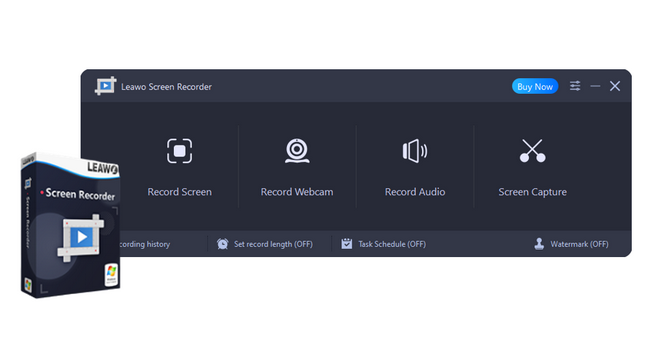
Leawo Screen Recorder is a powerful yet free screen recorder that can record screen, webcam, microphone and PC audio with no watermark or time limit. Also, it allows you to capture the entire screen or a specific region.
You can record in original quality or compress to a smaller size. Moreover, it saves recordings as video files in MP4, WMV, AVI, MOV and other formats or animated gif images. You can also choose to upload to YouTube or Vimeo instantly.
It is simple to use but provides useful features like task scheduling, hotkey settings and more. Perfect for creating software demos, video tutorials, gaming videos, etc.
-
Leawo Screen Recorder
– Record all activities on your computer screen as HD screencast.
– Record video from your webcam.
– Record any audio from your computer an/or microphone.
– Capture anything on your computer screen as screenshot.
– Add drawing, annotations, watermark, mouse animation, and BGM to recordings.
– Output in high quality with multiple formats selectable.
Key Features:
- Records screen, webcam, microphone and PC audio
- Capture screenshots
- No watermark or time limit
- Add audio narration, real-time drawing, doodles, mouse effects, etc.
△ 2. OBS Studio
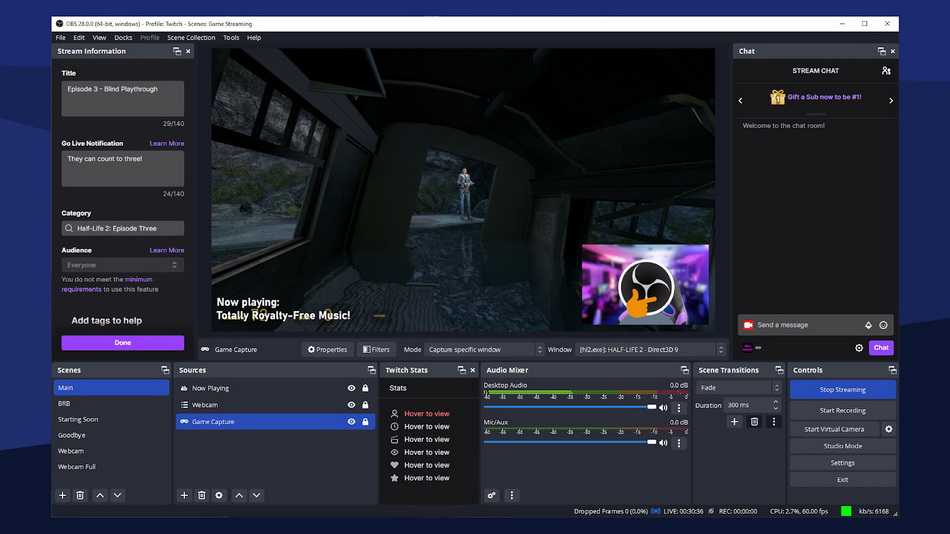
OBS Studio is free and open source software for video recording and live streaming. Also, it captures your screen, webcam, microphone and PC audio. You can record multiple sources simultaneously with no limits. It supports capturing media from webcams, capture cards, network streams and more. You can also add images, text, web pages, webcams, and capture cards to your scenes.
Moreover, it produces high quality outputs and can output to virtually every format including MP4, MOV, FLV, and TS. You can stream directly to websites like Twitch, YouTube, DailyMotion and more.Lastly, it has a simple and easy-to-use interface but provides advanced features for power users. Ideal for gamers, live streamers, and professional video creators.
Key Features:
- Open source software for screen recording
- Supports multiple sources and screen capture
△ 3. Streamlabs OBS
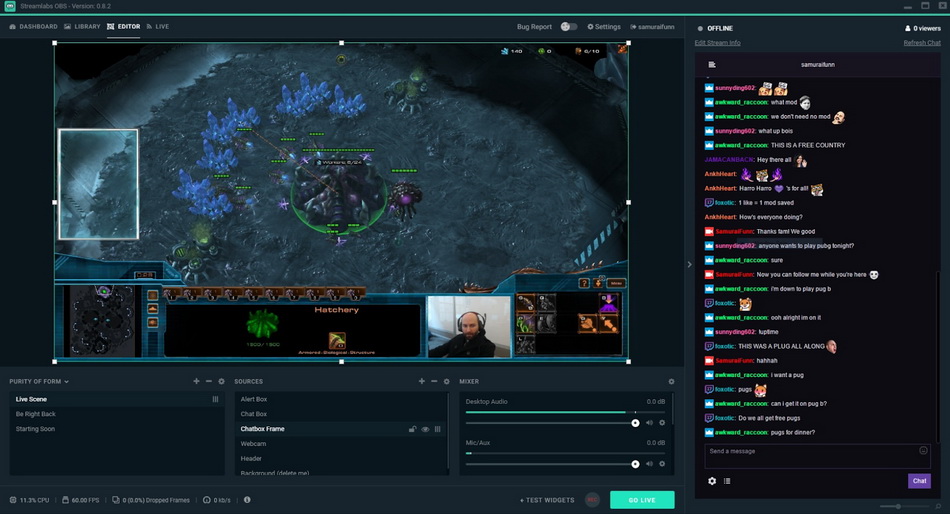
Streamlabs OBS is free live streaming and screen recording software built for gamers and live streamers. Also, it can capture your screen, webcam, microphone and PC audio with no limits or watermark. Moreover, it is optimized to capture gameplay and live stream to YouTube, Twitch, and Facebook Gaming.
It provides an easy-to-use interface but includes advanced audio filters, webcam filters, themes, overlays and more. You can create custom intro/outro scenes with transition effects.
Also, it offers additional features like chat, automated alert systems, stream sponsorships to help you build your streaming brand and career. Above all, It produces high quality video and audio and can save recordings to your PC or stream live.
Key Features:
- Free and open source software for live streaming and screen recording
- Easy to setup and customize
△ 4. FlashBack Express
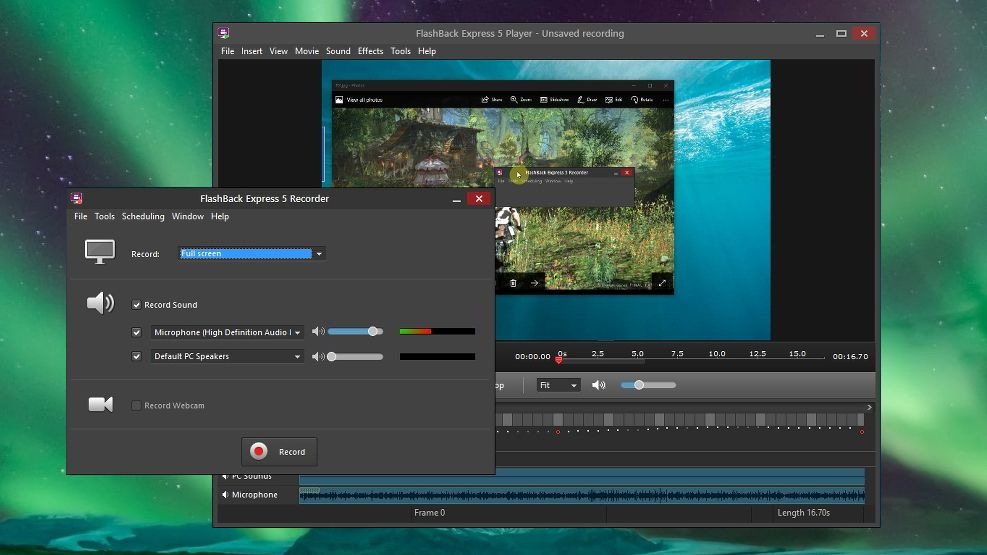
FlashBack Express is the free version of FlashBack Pro screen recorder. Also, it can capture your screen, microphone and PC audio. It is basic but easy to use. Moreover, it records with no watermark but has a 5 minute limit per recording. You can save in AVI, WMV, MP4 and FLV formats.
Above all, it includes basic editing features like trimming clips, merging multiple clips and adding text/watermarks/effects. It is good for creating quick screencasts and tutorials but lacks advanced options. Decent for casual users on a budget.
Key Features:
- No watermark but has 5 minute time limit per recording
- Basic editing features like trimming, merging clips
△ 5. TinyTake
It is a free cloud-based screen recorder. And, TinyTake can capture your screen, webcam and microphone. It records with no watermark but has a 2 minute max length per recording. You can save and share recordings as video files or GIFs.
Also, It provides options to annotate your captures, add shapes, text and stamps. You can share captures instantly with team members or embed in websites. However, it lacks advanced features but is extremely simple to use. Good for quick screen capture and sharing short recordings with others.
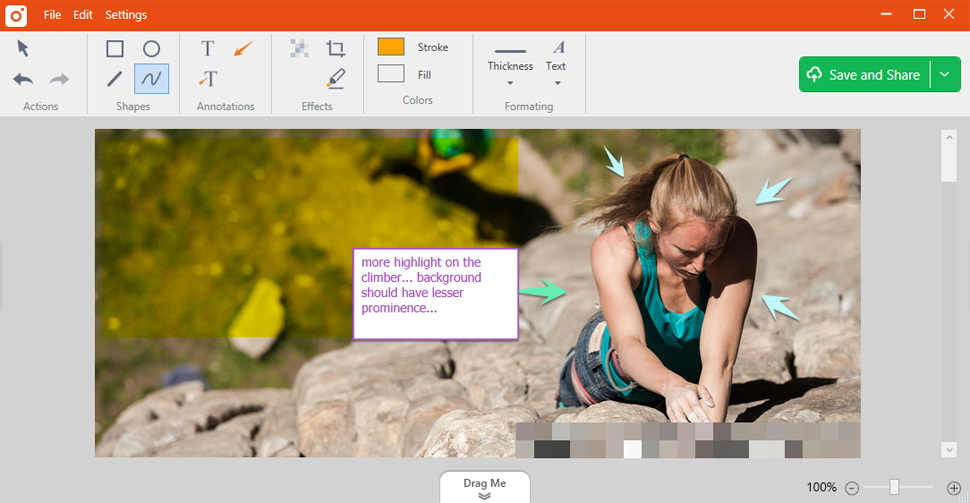
Key Features:
- Free cloud-based screen recorder
- Records screen with webcam and microphone
- 2 minute max length per recording
- Save and share recordings, screenshots and GIFs
△ 6. ShareX
ShareX is free and open source screen capture and screencasting software. Also, it can capture your screen, webcam, and microphone with no limits. It supports full screen, regional, window, and scrolling capture.
Moreover, it can upload captures to over 80 image/video hosting services including YouTube, Vimeo, Imgur, and Dropbox. You can also save to your PC. It includes additional tools like color picker, QR code reader, image editor, and a built-in FTP client.
Furthermore, it provides filename customization and automatic upload options. It is highly customizable and ideal for power users. Great for creating software tutorials, recording presentations and more.
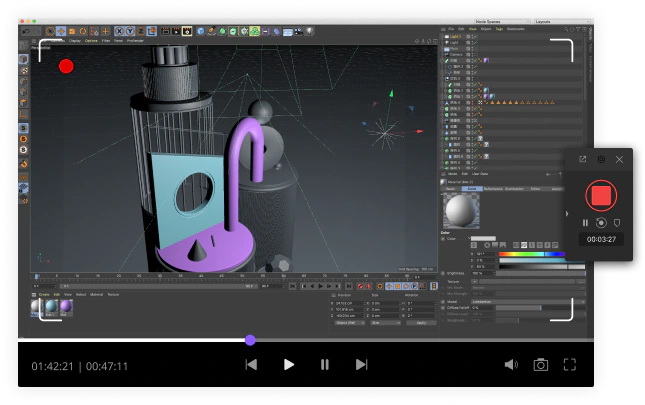
Key Features:
- Capture screenshot, screencast and webcam
- Annotate and edit captures, upload to over 80 image/video hosting services
△ 7. Icecream Screen Recorder
Icecream Screen Recorder is free screen recording software for Windows. And it can capture your screen, webcam, microphone and PC audio. It records with no watermark but has a 10 minute max length per recording. You can export recordings as video files in MP4, AVI, MKV, MOV, and WEBM formats.
Also, it includes basic editing tools to trim clips, crop recordings and merge multiple clips together. You can also customize hotkeys to control recording. It is very easy to use but lacks some advanced features. Good for casual users that need a simple screen recorder to create quick screencasts and short videos.
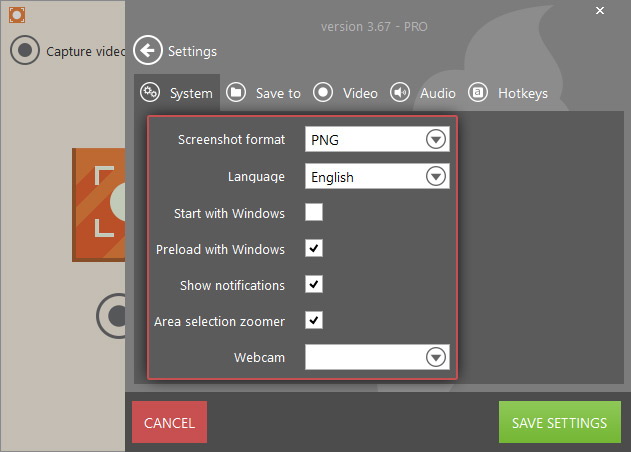
Key Features:
- Capture screencasts, webcam footage, mic and PC sounds
- No watermark but has 10 minute max length per recording
- Editing tools to trim, crop and merge videos
△ 8. Ezvid
Ezvid is a free screen recorder and video editor for Windows. Also, it can capture your screen, webcam, microphone and PC audio. And, it records in segments that you have to manually stitch together with the built-in editor. It adds no watermark but recording length depends on your PC.
The integrated video editor provides options to add annotations, titles, transitions, themes, and visual effects. You can create slideshows, narrate over images and export recordings as video files.
However, it lacks some advanced screen recording features but the video editing capabilities are impressive for free software. Good for creating software demos, tutorials, presentations and more.
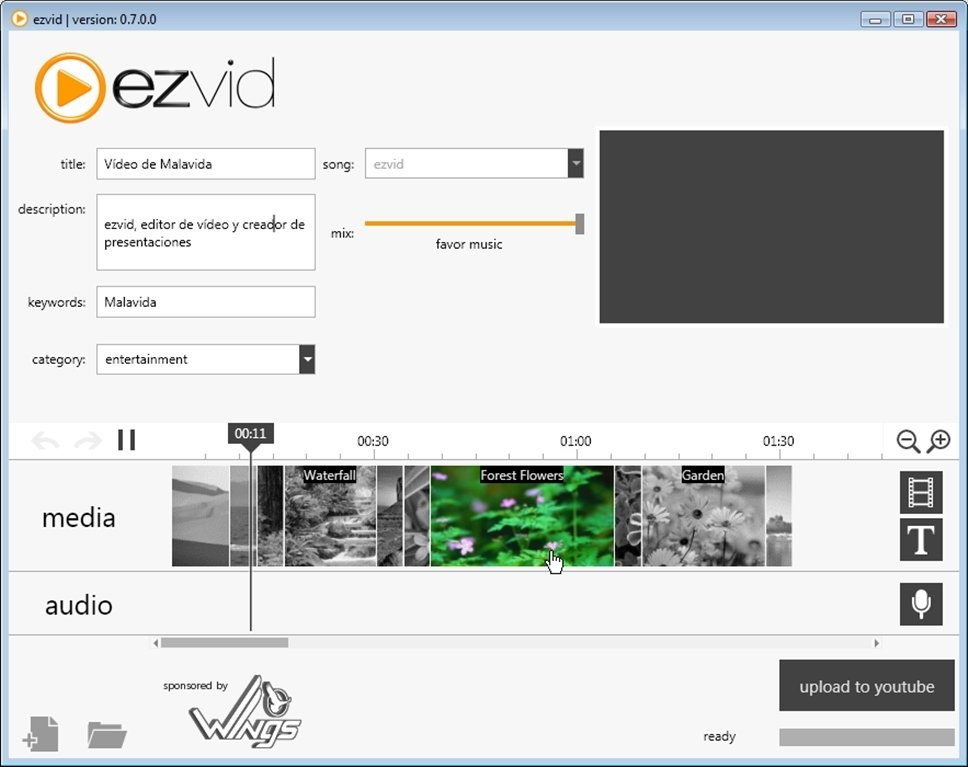
Key Features:
- Free screen recorder and video editor
- Add annotations, titles, effects and transitions
- No watermark but records in segments that you have to stitch together
△ 9. CamStudio
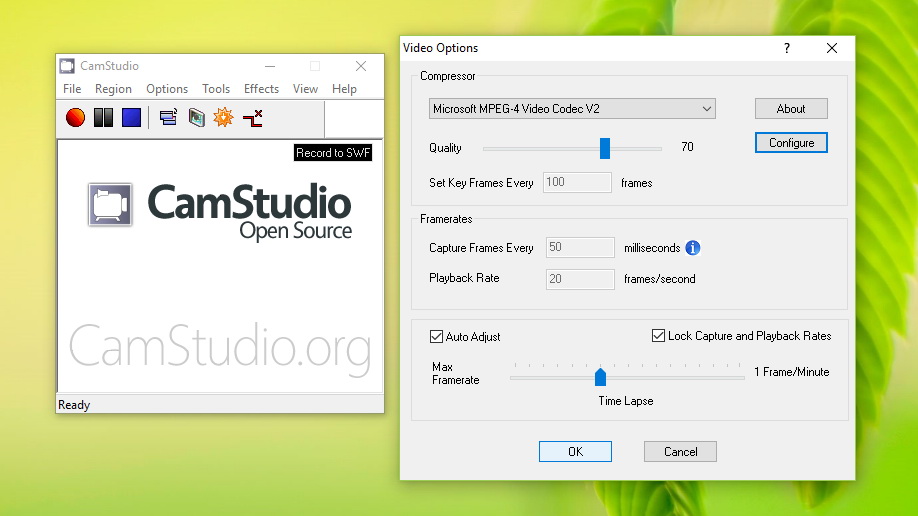
CamStudio is free open source screen recording software for Windows. And, it can record your screen, microphone and PC audio. Also, it adds no watermark but can only record for up to 10 minutes per segment.
You can stitch multiple clips together and export as AVI or SWF files. It provides options to set audio/video options, add annotations, record the full screen or a specific region and use hotkeys to start/stop recording.
The interface is outdated and it lacks advanced features of newer screen recorders but gets the job done for simple screencasts. Easy enough for casual users on a budget.
Key Features:
- No watermark but max recording time is 10 minutes per segment
- Convert to AVI and SWF, upload to YouTube and CamStudio server
△ 10. SmartPixel
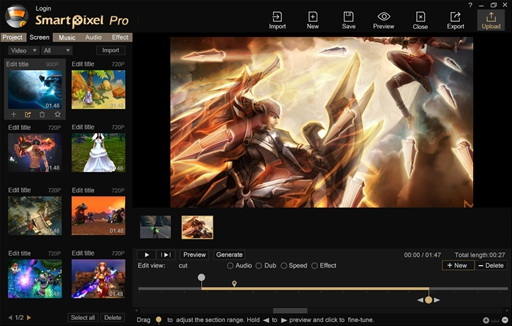
SmartPixel is free all-in-one screen capture and basic video editing software for Windows.And it can record your screen, webcam, microphone and PC audio with no limits. Also, it saves in a proprietary format but can convert to MP4 and other formats.
The video editor allows you to trim clips, crop, rotate, merge and annotate recordings. You can add visual effects, transitions, titles, and background music. It is easy to use but lacks some screen recording options. The video editing features make it good for creating short demos, tutorials and presentation recordings.
Key Features:
- Built-in video editor to trim, crop, rotate, merge clips
- No watermark but has 10 minute max length per recording
Part 2: How to Record Screen with Best Screen Recording Software?
Here are some tips to record screen with Leawo Screen Recorder:
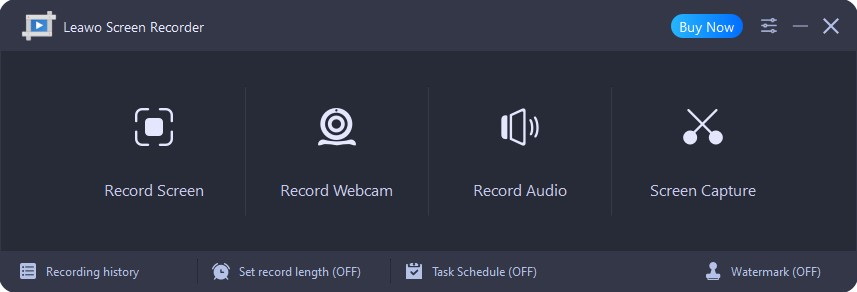
Step 1: Launch Leawo Screen Recorder
Install Leawo Screen Recorder. This best free screen recorder can record your full screen, selected area, webcam, audio, and save the recordings in different formats like MP4, MOV, WMV, AVI, etc.
Step 2: Set Output Preferences
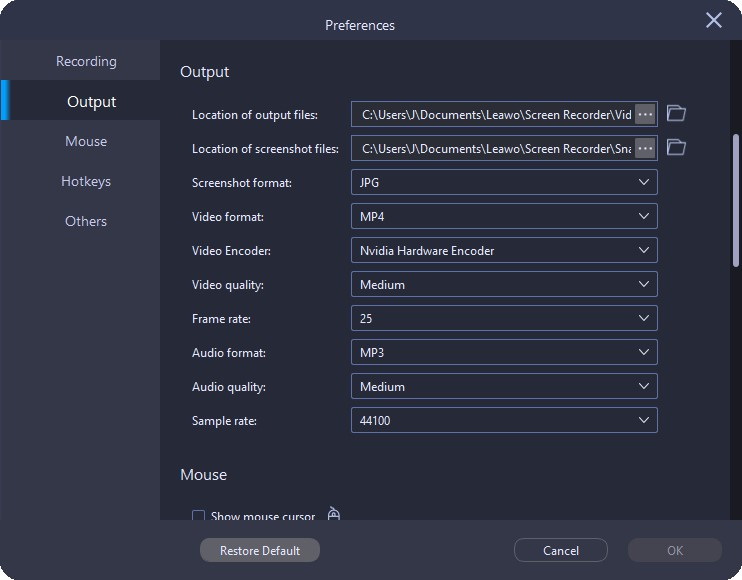
Prior to starting screen recording, it is recommended to configure the output directory, video format, video encoder, video quality, video frame rate, audio quality, and audio sample rate. To access these settings, click on the three-bar icon located on the top menu bar and select “Settings” from the menu. This will open the “Preferences” panel. Next, navigate to the “Output” tab in the left-hand column to adjust your output preferences.
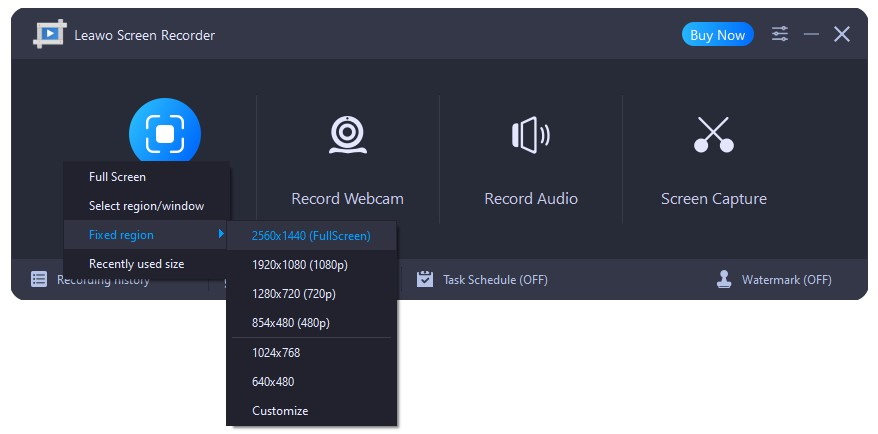
Step 3: Select Recording Region
For recording selected areas, drag and draw a rectangle on the screen to select the recording area. This allows you to focus on a specific part of the screen.
Step 4: Configure Related Settings Before Recording
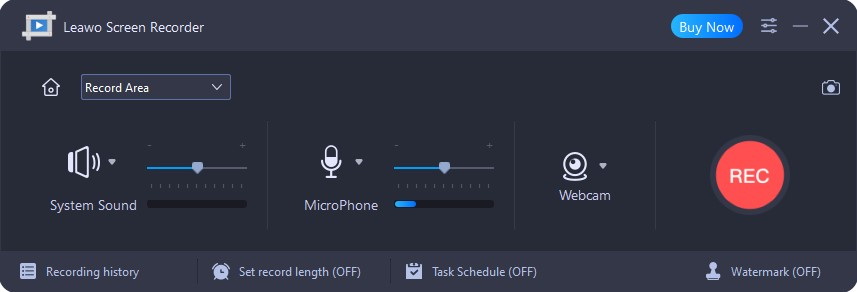
The screen recording process automatically records the system sound by default. To select a different source of system sound, click the down-arrow icon located before the System Sound button. This will display a drop-down menu containing a list of available options. To disable system sound for screen recording, click the System Sound button until a cross icon appears in the lower right corner.
Step 5: Start to Record Screen
To initiate the screen recording process, locate the “Record” button positioned on the right side of the Screen Recorder window and click on it. If you have enabled the “Show countdown before recording” option within the “Preferences” panel, a countdown from 3 to 1 will appear before the recording commences.
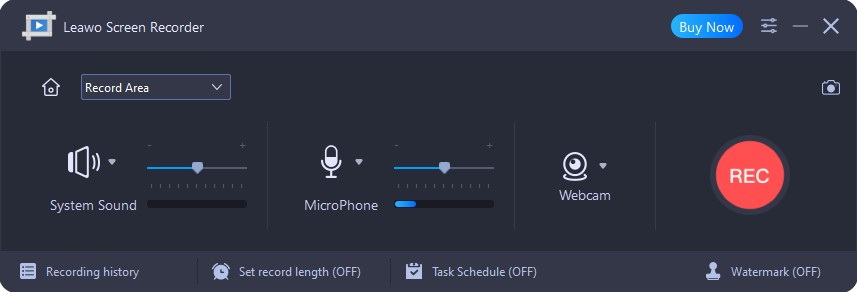
To conclude the screen recording session, click on the “Stop” button. Once the recording has ceased, all recordings will be listed in the “Record History” panel.
Looks like a long process? Right? Then here we have a bonus tip for you. You can avoid all the hard work with simple software. Excited? Keep reading.
Bonus:Best Software to Download Videos Directly Without Recording
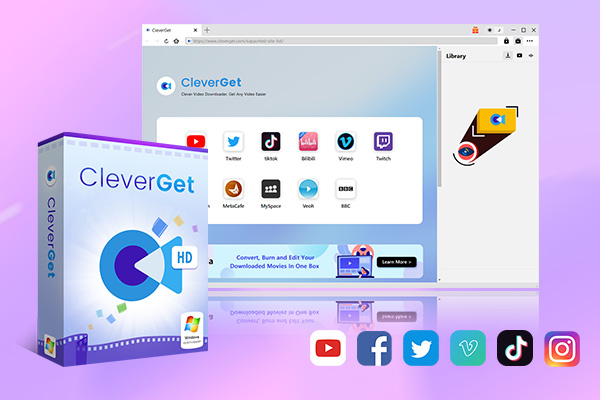
CleverGet Video Downloader is the best software to download videos directly. Unlike screen recorders, CleverGet allows you to download videos directly without needing to record your screen first. Just provide the link and the download will start instantly.
CleverGet supports downloading videos from popular platforms including YouTube, Facebook, Instagram, Twitch, Vimeo, Dailymotion, TikTok and many more. No need to open the video page or install any extensions.
In summary, CleverGet is the best software to download videos legally and conveniently from over 1000 websites without recording them. We highly recommend trying out CleverGet if you want an easy solution for downloading videos legally.
-
CleverGet Video Downloader
– Support 1000+ sites like YouTube, Netflix, Hulu, HBO Max, etc.
– Download up to 8K movies & TV shows
– Support live streaming video and M3U8 link
– Remove ads from source videos
– Batch processing & playlist downloading
– Built-in browser and player
– Hardware acceleration to download videos 6x faster
So, download the CleverGet video downloader today, and enjoy offline viewing without the hassle of recording or buffering.
-
How to Record Any Streaming Video on Mac Safely?Cassie/2026-03-30
-
How to Record Discord Audio on Windows, Mac & MobileCassie/2026-02-27
-
Instagram Viewer Guide: How to View Instagram AnonymouslyCassie/2026-01-30
-
Why Does YouTube Keep Pausing? Causes and Easy FixesCassie/2025-12-26
-
How to Record Facebook Live Stream for Free on PC?Cassie/2025-11-27
-
3 Best Methods to Play Blu-ray on VLCCassie/2025-10-30
-
3 Best Tools to Convert M3U8 to MP4 Without ErrorsCassie/2025-09-26
-
5 Best Methods to Open an ISO File EasilyCassie/2025-08-28
-

Discover 8 Video Platforms Like YouTube NowCassie/2025-08-13
-
Anonymous Mode: How to View Twitter Without an Account?Cassie/2025-05-26
-

4 Ways to Download Movies from FMoviesLeia/2024-05-30
-

Top 5 Disappointments of iOS 6 Apple Users GetTony/2012-09-27
-
6 Best URL to MP4 Converters to Download URL to MP4August/2023-09-11
-
23 iPhone 5 Rumors Listed from A to WTony/2012-09-13
-
2 Methods to Convert Flash EXE to Flash SWFTony/2012-08-28
-
Is Watchseries Safe to Use? What Are the Best Watchseries AlternativesPatrick/2024-11-01
-
10 Best Project Free TV Alternatives to Watch Movies/Shows OnlineMax Will/2025-04-29
-

Top 8 Free YouTube Proxy Sites for YouTube Unblocked 2024Lumi/2024-09-24
-
How to Free Download iBOMMA Telugu Movies in HDMax Will/2025-04-29
-
Top 10 CouchTuner Alternatives for Free Movies & Shows 2026Max Will/2025-04-29
Leave a Comment
You must be logged in to post a comment.
0 Comments.