
DVD has played an important role in people’s entertainment. In the past, people tended to use DVD discs to store those videos that had recorded their best memories and experiences. However, with the rapid development of Internet, uploading videos to video sharing websites like YouTube has become a favored choice. Therefore, users may want to upload those DVDs to YouTube.
In order to manage it, users need to figure out a way to convert DVDs to those files supported by YouTube. Moyea DVD4Web Converter is a DVD encoder which can rip DVD to Flash Video file with H.264 codec for perfect quality. As a DVD for YouTube converter, it can convert DVD to FLV, MP4, MOV, 3GP and 3G2 files. With this tutorial, users can easily upload DVD to YouTube.
Step 1: Download and launch Moyea DVD4Web Converter.
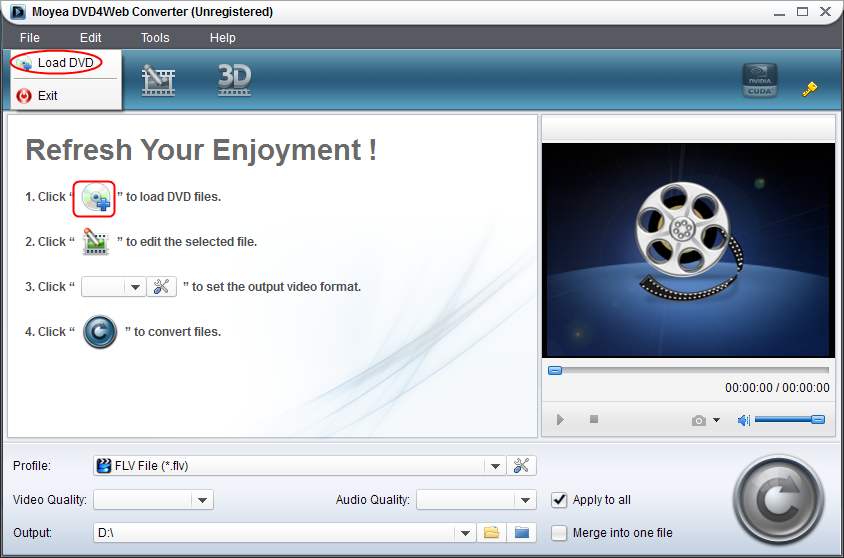
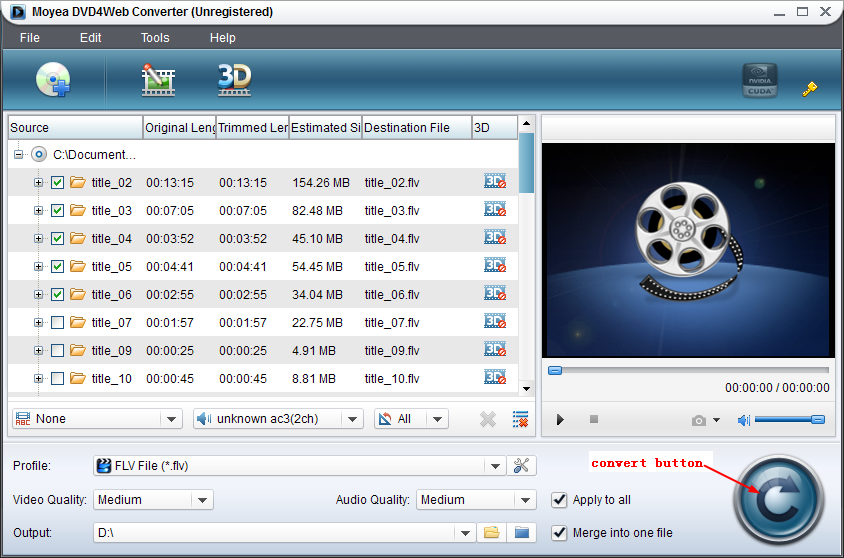
Step 2: Input DVD into Moyea DVD4Web Converter. Two methods are provided to import DVD file. Users can either click DVD icon or choose "Load DVD" in the drop-down menu of "File".
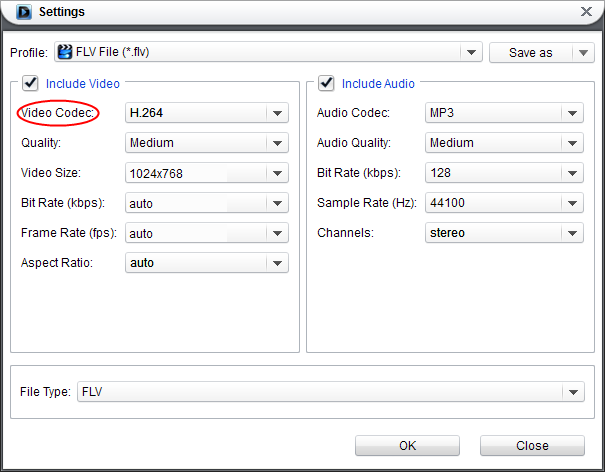
Step 3: Set the output file for YouTube. In order to upload DVD to YouTube, users are required to set the output file as a video supported by YouTube in the drop-down menu of "Profile". For example, set the output video as a Flash Video by choosing "FLV File" in the drop-down menu.

To get a video with H.264 codec, click "Settings" button and then set the Video Codec as "H.264". Of course, video parameters like video quality, bit rate, frame rate and video size or audio parameters like bit rate, sample rate and audio quality can also be customized with corresponding boxes in the interface.
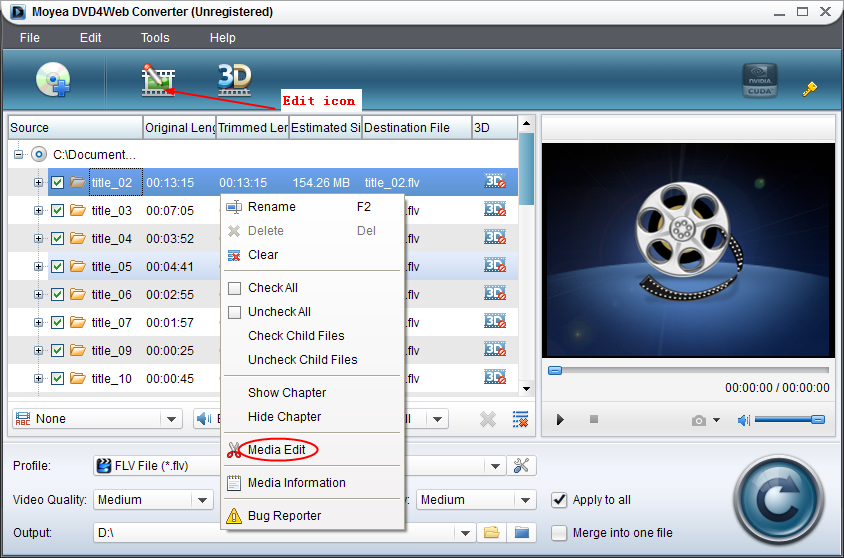
Step 4: Edit the output video. In Moyea DVD4Web Converter, video editing features like trimming, cropping, adding video effects and adding watermark are provided. Users are permit to get to the corresponding interface by either clicking "Edit" icon or right clicking the DVD file and choosing "Media Edit" option in the drop-down menu.
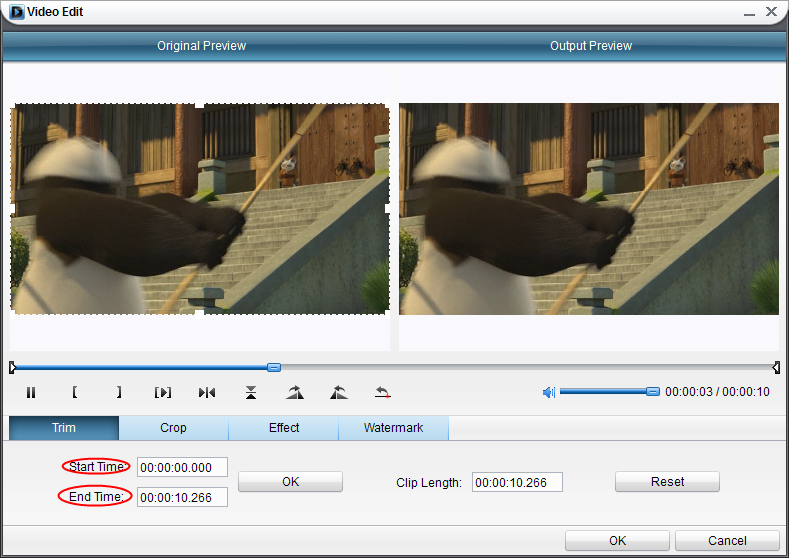
1. Trim the DVD file. Users are allowed to cut the video precisely to millisecond with this feature. Get the desired DVD part with options like "Start Time" and "End Time".
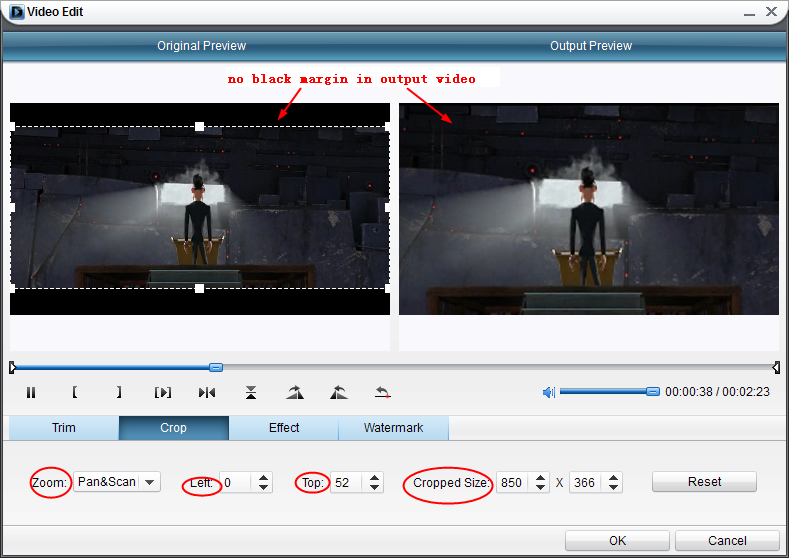
2. Crop the DVD file. By clicking "Crop" tab, users will get rid of the annoying black margin. Wiping out the black margin with options including "Left", "Top", "Zoom" and "Cropped Size".
3. Add video effects to the DVD file. Click "Effect" tab and then add video effects to the DVD file with bars like "Brightness", "Contrast", "Saturation" and "Volume Zoom".

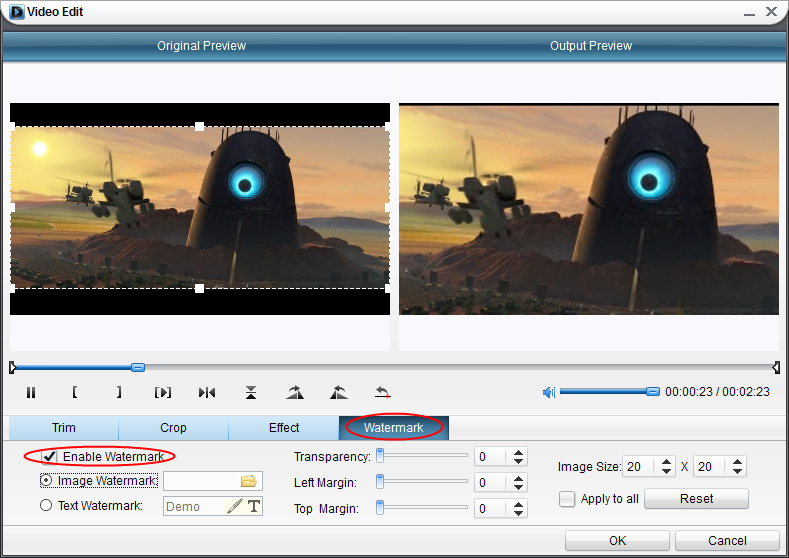
4. Add watermark to the DVD file. Click "Watermark" tab and check "Enable Watermark" to add image or text watermark. Locate the watermark with "Left Margin" and "Top Margin" bars and set the transparent degree of the watermark with "Transparency" bar.
Step 5: Add 3D effects with the powerful 2D to 3D converter. Moyea DVD4Web Converter is also a powerful 2D to 3D converter with which users can attach 3D effects to the video. To enter the interface of 3D Settings, click "3D Settings" icon or click  and choose "3D Settings" in the drop-down menu.
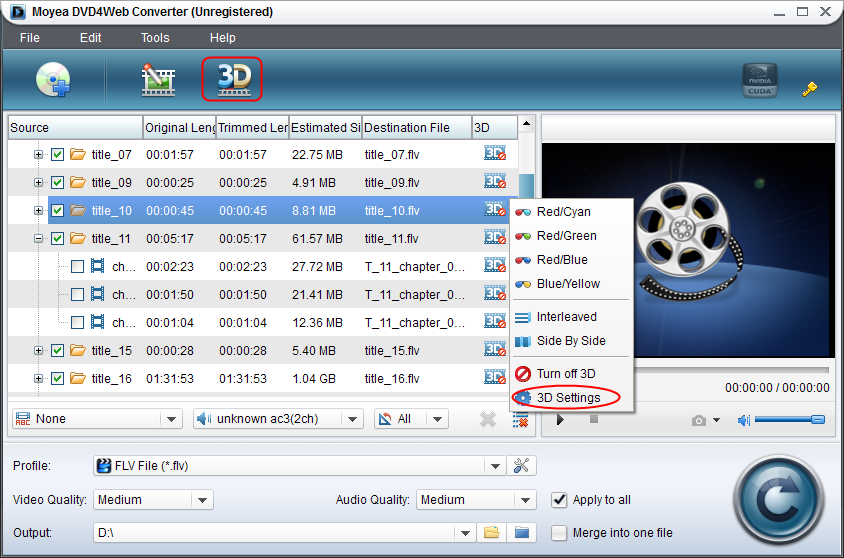
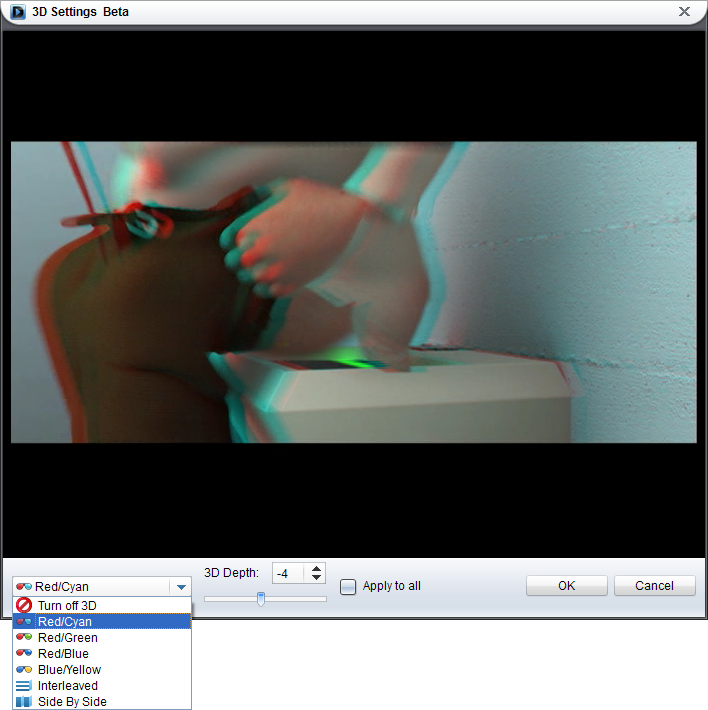
Six 3D effects are provided in the drop-down menu. Choose one 3D effect and then adjust 3D depth with corresponding bar in the interface.
Step 6: Complete the conversion. After all those steps, users need to click convert button. When the conversion completes, the converted DVD can be uploaded to YouTube.
Enjoy the video to Flash conversion with Moyea DVD4Web Converter.




 $29.95Buy Now